





Can I set an Offer for my Listing?
You can add a special Offer for your listing, get extra promotion and of course more inquiries. This way, you can set an “Early Booking Offer”, a “Last minute Cancellation Offer”, or simple Offer a Discount for a specific period of your season. It is very common among travellers, the research for a Special Discount among the many available options. Every Offer, once it is “activated”, it is valid for 3 weeks (21 days). After that, the Offer expires and becomes inactive. This way, only real special deals are promoted.
Once you login to our Administration Panel, you will find the option “Offers” in our top menu. There, you can find all your bought offers (available for the future or already activated). See screenshot.
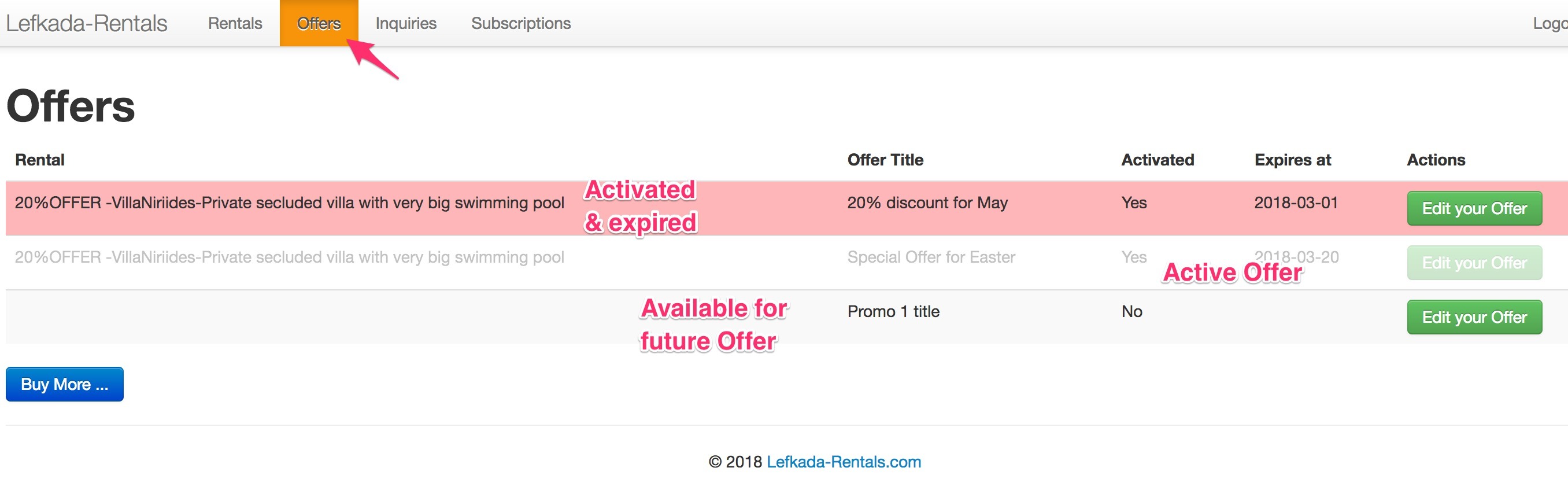
The Offer with the red background (1st Offer), means that this Offer had been activated in the past and expired. The grey Offer (2nd one) means that this Offer is Activated and currently promoted. The 3nd Offer is an available Offer for future usage. You can “Edit”, set all details and then “Activate” it.
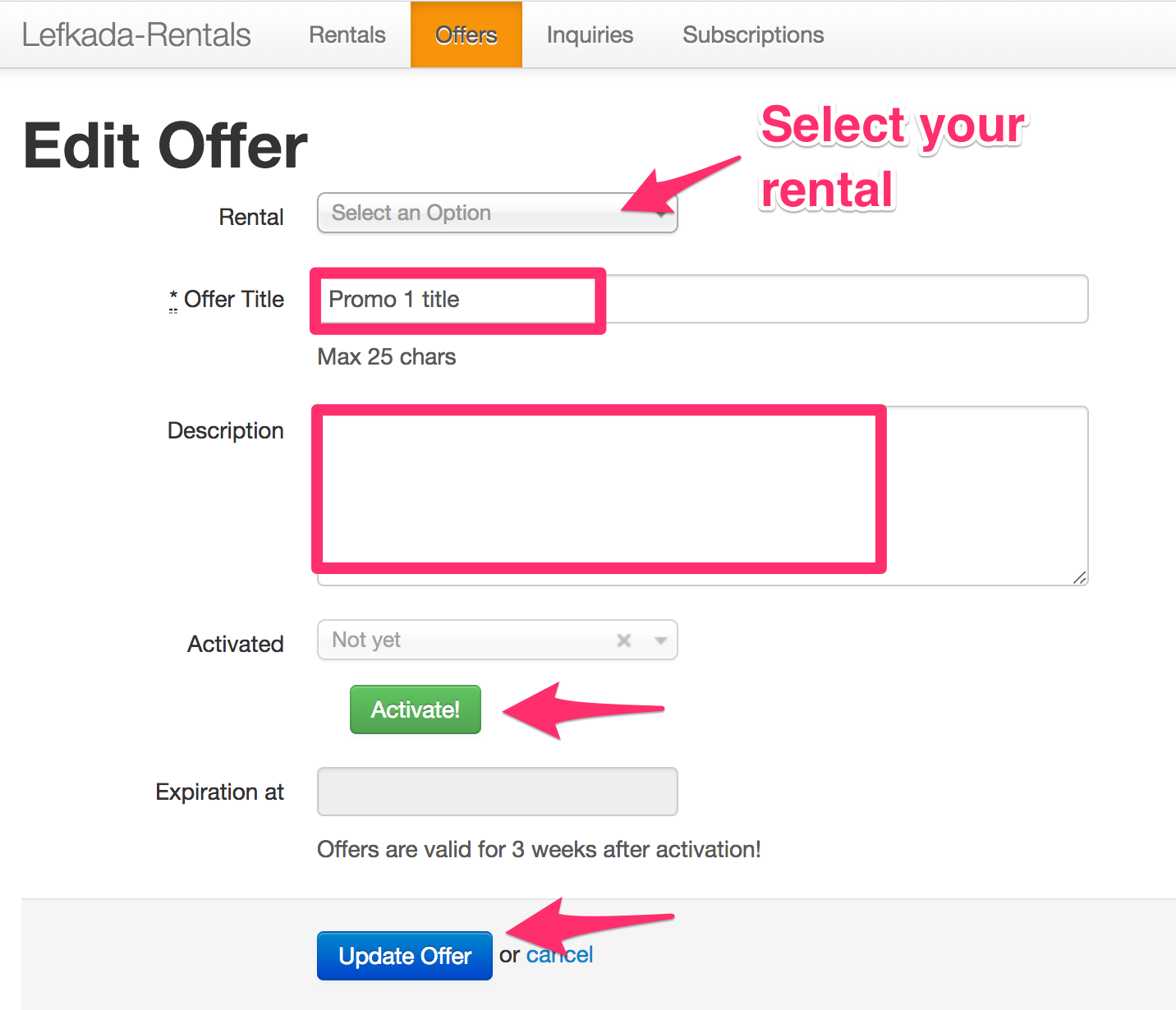
For every Offer, you must set the associated Rental which is valid for this Offer, fill the “Offer Title” (maximum 25 characters) and detailed description. You can edit and update your Offer as many times as you want. When your Offer is ready, you simply click on “Activate!” button and then your Offer becomes public to the travellers.
All Active Offers are automatically added to our special section for Offers, but also promoted in all other sections. If you have used all your available Offers, you can simply ask to buy extra 5 Offers, which they can be used and activated whenever you desire.
Take advantage of our brand-new rules and quickly set up your special offer to be automatically calculated at the potential customer rate.
By enabling a special offer and setting it up with the right rules, you increase your chances of getting a booking. Your offer will gain more exposure on the popular ‘Special Offers’ page, while customers see their final rate automatically calculated, including the discount price.
Here are practical examples to illustrate how rate rules can be set up:
-
Long Stay Discount: For eg. Offer a 10% discount for guests booking more than 8 nights. This incentive encourages longer stays, reduces turnover costs, and stabilizes booking flow.
-
Occupancy-Based Discount: For eg. If a villa has a capacity of 8 people but the guest inquiry is for only 2 people, automatically apply a 15% discount on the rate. This offers flexibility to smaller groups and avoids leaving the property underutilized without pricing incentive.
- Custom Special Offer for a specific period:For eg., set a 10% discount for the dates from October 20th to October 27th if your property is available and not yet booked. Choose the Low Occupancy Offer. Apply the 10% discount for your preferred number of guests. Finally, you just have to select the exact week or date range when your property is available and create this rate rule from the blue button.
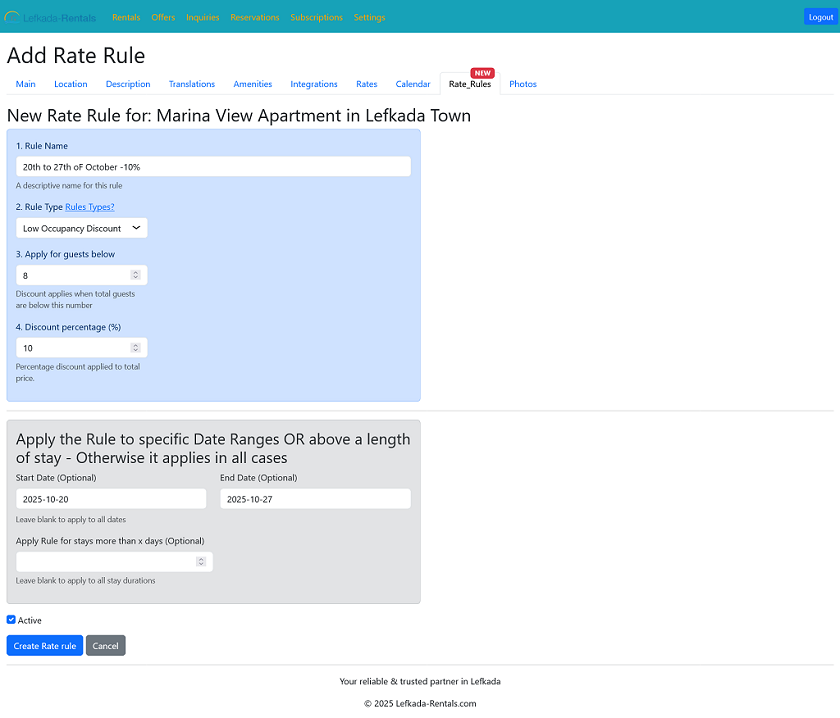
These dynamic pricing rules can be customized and applied for any specific period defined by the owner to reflect seasonal demand, special events, or promotional campaigns. Automation within a pricing system allows these rules to update rates in real time based on current inquiries and booking data.
Implementing such clear and adaptable rate rules helps balance guest satisfaction with revenue optimization, ensuring pricing is competitive and fair while maximizing rental returns.
If you need any further help, please, do not hesitate to Contact Us.
