Travelers & Visitors information

How does Lefkada-Rentals work for Guests?

With Lefkada-Rentals.com, finding your perfect place to stay is simple and easy! As Guest who wants to visit Lefkada island, you have the flexibility to choose which type of property suits your needs. With our large inventory of property listings, you can find almost anything. So, whether you are looking for a budget single bedroom studio, a large luxury villa, a big yacht or a car for your holidays, we have that all covered!

Here is a summary on how Lefkada-Rentals works for you!

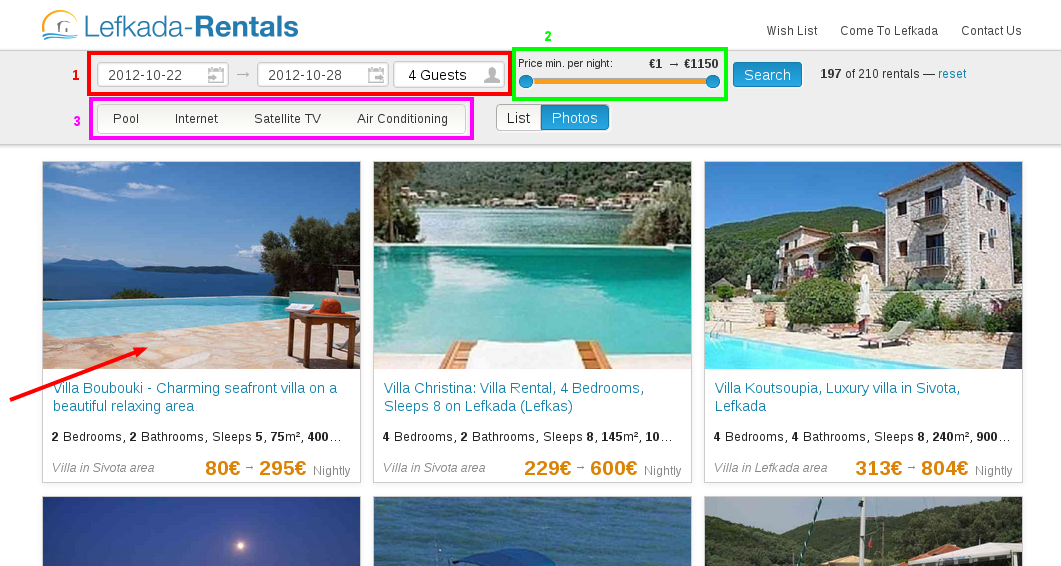
A) On the homepage, start by typing in check-in/check-out date and the total number of guests. Click on Search to check the available property listings.

B) Once you retrieve the results, you can change the dates and search again (1), you can adjust the desired price (2), or you can refine the results with some criteria (3). You can click anywhere on the property to see more details for each property.
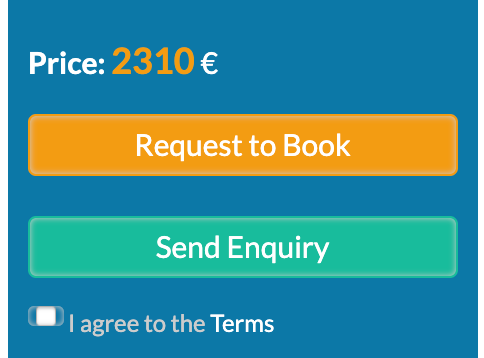
C) After you review the properties, you can send a message to the owner, or request to book, using the Contact the Owner form, at the top right-hand side of the page.
Don’t forget that we provide you direct contact with the owners, without any extra cost or service fee. The prices you see here, are the best prices you can find on the internet for their properties.

If you didn’t find the perfect holiday rental for your needs, do not hesitate to contact us, so we can help you with your research.

I sent an inquiry to the owner and haven't heard back yet. What should I do?

Property owners may receive multiple inquiries every day and sometimes they may have overlooked some of their inquiries. Feel free to send a follow up message to remind them about your inquiry.
To increase your chances of your inquiry being accepted by the property owner or the property manager, you should provide as much information as possible in your inquiry (international phone number, requested dates, number of persons etc)
Another option is to try call him or her straight to the given phone numbers, found on the Contact the Owner form.
If you haven’t heard back after a reminder, it is probably because the host cannot accommodate your request or because he has a problem with his email server. In this case, feel free to inform our Customer Support about this issue.
Another problem could be your wrong email address. If you haven’t received a confirmation email by Lefkada-Rentals.com with the details of your inquiry, right after your sent Inquiry, that means that you may have misspelled your email address or it is in your spam folder. Please, try again and pay special attention to your email address.

Do I pay anything extra for your service?

No, there is not any hidden fee, extra charge or commission when you use our service.
You only pay the agreed amount to the owner, and we do not charge you anything extra, either you as a guest, or the property owner!
This way, you get the best price the owner can give!
Even if you pay online via our platform (see how), using your credit card, the total amount of the initial deposit (usually 30% of the booking price), goes straight to the owner, right after your Check-in to his property.

Give me some basic travel information about Greece

Official language is Greek. Greece uses metric system (kilograms, centimeters, °C). Time zone is UTC+02:00 with daylight saving time.

Electricity

Greece uses 230V, 50Hz with sockets and plugs Type C and Type F.

Currency

Greece uses the Euro (symbol: €), code EUR.

Banknotes come in denominations of 500, 200, 100, 50, 20, 10 and 5 Euro. Euro is subdivided into 100 Cent. Coins come in denominations of 2 and 1 Euro and 50, 20, 10, 5, 2 and 1 Cent.

Phone

You can buy a SIM card for about 23.60 EUR, which includes 2 gigabytes (GB) of data plan. You can choose from 3 network providers: Cosmote, Vodafone or Wind. Greece uses GSM mobile networks GSM 900 and GSM 1800. 4G mobile network is available in many areas in Lefkada.

Internet

Internet speed in Greece is on average 7.3 Mbps. Most of the properties provide high speed internet connection. There are also many public areas, specially in Lefkada town, Nidri and Vasiliki with free wifi. Moreover, there are many internet cafes with available computers.

Dial code

+30

To call Greece, dial + or 00, then 30 (the country code for Greece), then the area code and the local number (2…), or the given mobile number (69…)

Vaccinations

No vaccinations are required to enter the country, but it is recommended to perform routine immunizations for your protection and to prevent the spread of infectious diseases.

Important numbers

Police 112

Ambulance 112

Fire department 112

Police 100

Ambulance 166

Fire 199

Forest fire 1591

Coast guard 108

Counter-narcotics 109

Tourist police 171

Social aid 197

You can also find plenty of useful tips and guidelines about Greece, Ionian Islands and Lefkada, in our Lefkada Travel Guide.

If you are looking for more specific info, and we are able to help, please contact us.

How can I book the villa I like?

Many Rentals provide the option of “Online Booking”. Once you select the villa you like, select the desired dates of arrival and departure. Then the Total Price of the booking will be presented to you.
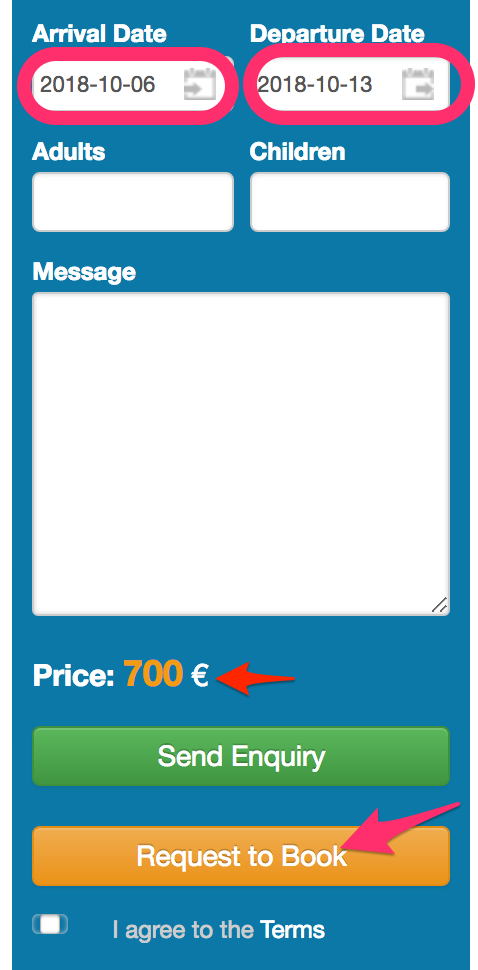
If you agree, click on “Request to Book“, after having filled all the details (name, email, adults, phone etc).

The owners can always make a better offer, giving you a discount of the initial price, specially if they see that you are seriously interested in booking their property!
Then, after you see a Preview of your Reservation details, you can proceed to the pre-payment via paypal or credit card. Keep in mind, that you will not be charged, before the Owner accepts your Reservation request, within 24 hours (usually they accept after 1-2 hours).
It is also important for you to know, that you pay only 30% of the Booking Price, which is transferred to the owner, right after your check-in date, for your security. Keep in mind that this amount is guaranteed by Lefkada-Rentals.com and you get an immediate confirmation.
The remaining 70% of the booking price, is paid to owner, according to his policies (usually on arrival).
IMPORTANT: For this service, you are not charged anything extra (NO Service Fees for our guests)!!!

"Request to Book" or "Send Inquiry"

You may wonder why there are 2 buttons for your contact with the owner.

“Send Message” is used in any general case where the guests want to send a message to the owner. They may ask a generic question, without specific dates or price. Every rental can receive a generic message. Any communication or payment to the owner via bank transfer, is not via our platform, so we cannot guarantee the amount of the deposit, even though we can guarantee the reliability of the owners we advertise.

“Request to Book” concerns a potential booking request, for specific dates and number of persons. Only if the owner provides detailed pricing, this button is activated. The owner may also change the price and offer a discount of this initial price, after your communication. Also, if the guests want, after the communication with the owner, they can proceed with a pre-payment of the initial deposit (usually 30% of the total booking price), via our online payment platform (with Credit Card or Paypal). For their security, this downpayment, is transferred to the owner right after the check-in (without any extra service fee) and this amount is guaranteed by our portal.

“Book Now” is an extra 3nd button where some owners give the option of Instant Booking, without any previous communication, if guests want. If the guests have found the perfect villa for their holidays, they can proceed to a direct booking and secure their reservation immediately. They pay 30% of the booking price in order to secure their reservation and this amount is also guaranteed by our portal.

How does Lefkada-Rentals work for Guests?

With Lefkada-Rentals.com, finding your perfect place to stay is simple and easy! As Guest who wants to visit Lefkada island, you have the flexibility to choose which type of property suits your needs. With our large inventory of property listings, you can find almost anything. So, whether you are looking for a budget single bedroom studio, a large luxury villa, a big yacht or a car for your holidays, we have that all covered!

Here is a summary on how Lefkada-Rentals works for you!

A) On the homepage, start by typing in check-in/check-out date and the total number of guests. Click on Search to check the available property listings.

B) Once you retrieve the results, you can change the dates and search again (1), you can adjust the desired price (2), or you can refine the results with some criteria (3). You can click anywhere on the property to see more details for each property.

C) After you review the properties, you can send a message to the owner, or request to book, using the Contact the Owner form, at the top right-hand side of the page.

Don’t forget that we provide you direct contact with the owners, without any extra cost or service fee. The prices you see here, are the best prices you can find on the internet for their properties.

If you didn’t find the perfect holiday rental for your needs, do not hesitate to contact us, so we can help you with your research.

How can I add my property?

Lefkada-Rentals.com is created with the goal to increase tourism in Lefkada. By improving our owner’s community, organizing the rental offers, and making it easier for travelers to discover a perfect place to stay.

Are you a property owner or manager in Lefkada?
For now, you can not automatically signup and add your property into Lefkada-Rentals.com portal.
If you want to add your property/properties in our service, you should Contact Us
We will create an account for you and then you can add/update/change your details online by yourself.

Set up listing

Add details about your listing – photos, description, location, and amenities.
The more complete your setup, the more bookings you attract!

How can I add my property?

Lefkada-Rentals.com is created with the goal to increase tourism in Lefkada. By improving our owner’s community, organizing the rental offers, and making it easier for travelers to discover a perfect place to stay.

Are you a property owner or manager in Lefkada?
For now, you can not automatically signup and add your property into Lefkada-Rentals.com portal.
If you want to add your property/properties in our service, you should Contact Us
We will create an account for you and then you can add/update/change your details online by yourself.

How do I start with my new Calendar?

You just obtained an Availability Calendar (for “Advanced” or “Premium” packages). It is now time to set the “Closed” days of your property, the Available days and their corresponding prices.

Then, you start by adding the Rates periods. Click on the first day of the season, until the end of your “low season” and set the price. Continue with the rest, the “medium”, the “high” and the “peak” seasons. Every time, you set the daily price for them.

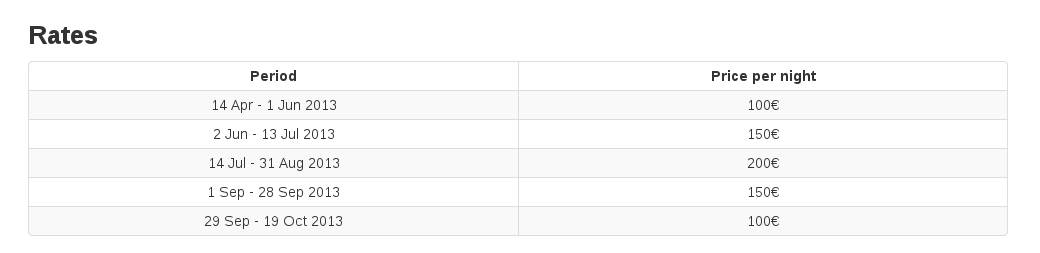
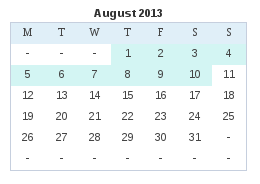
If you have setup a price for a period, you will see your calendar with a light blue color, so you know what is left.

Also, if you let your mouse over a “priced” day, you will see the price for these days.

Of course, you can also check, the auto-updated Rates table into your listing.

How can I update my availability and rates?

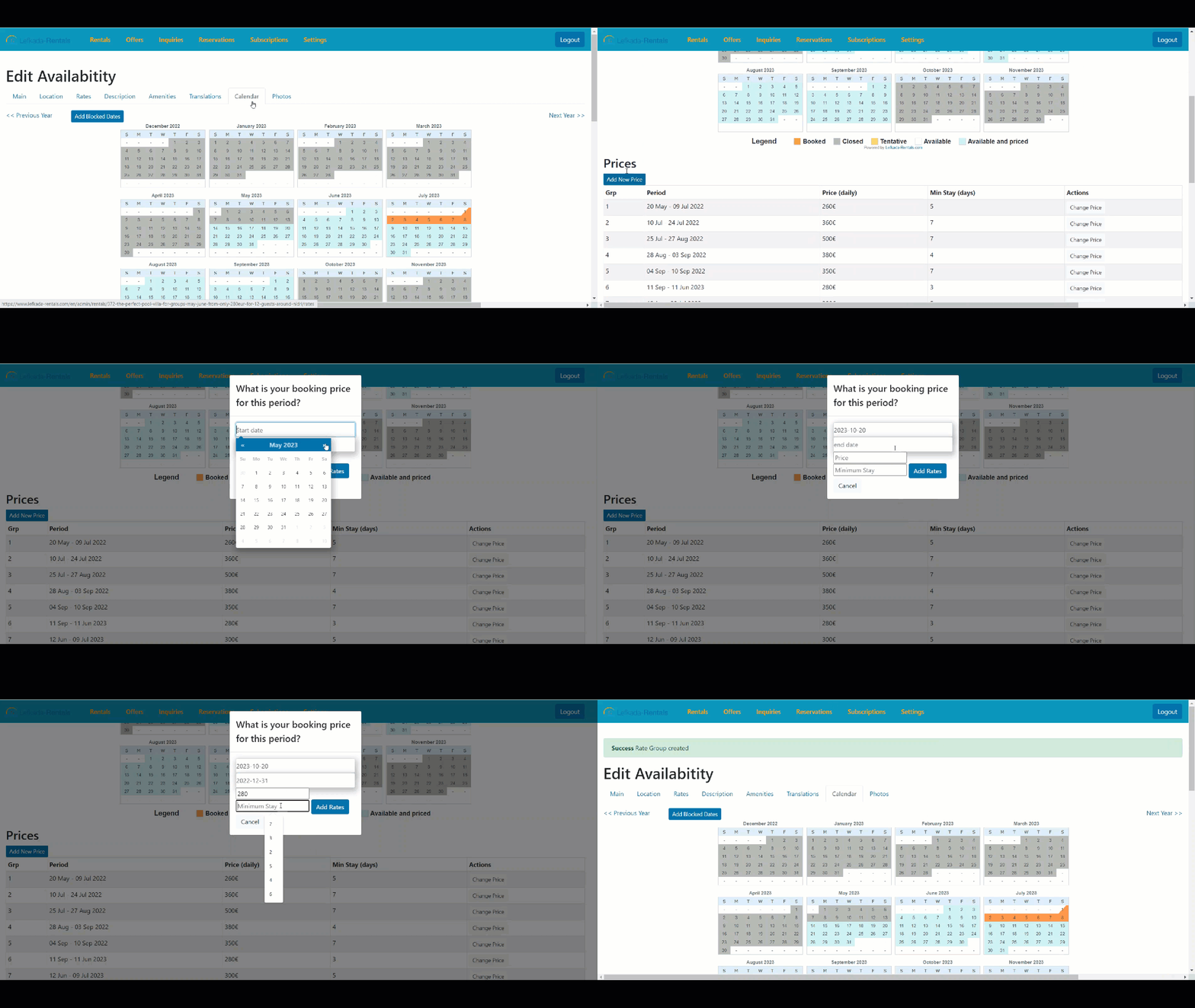
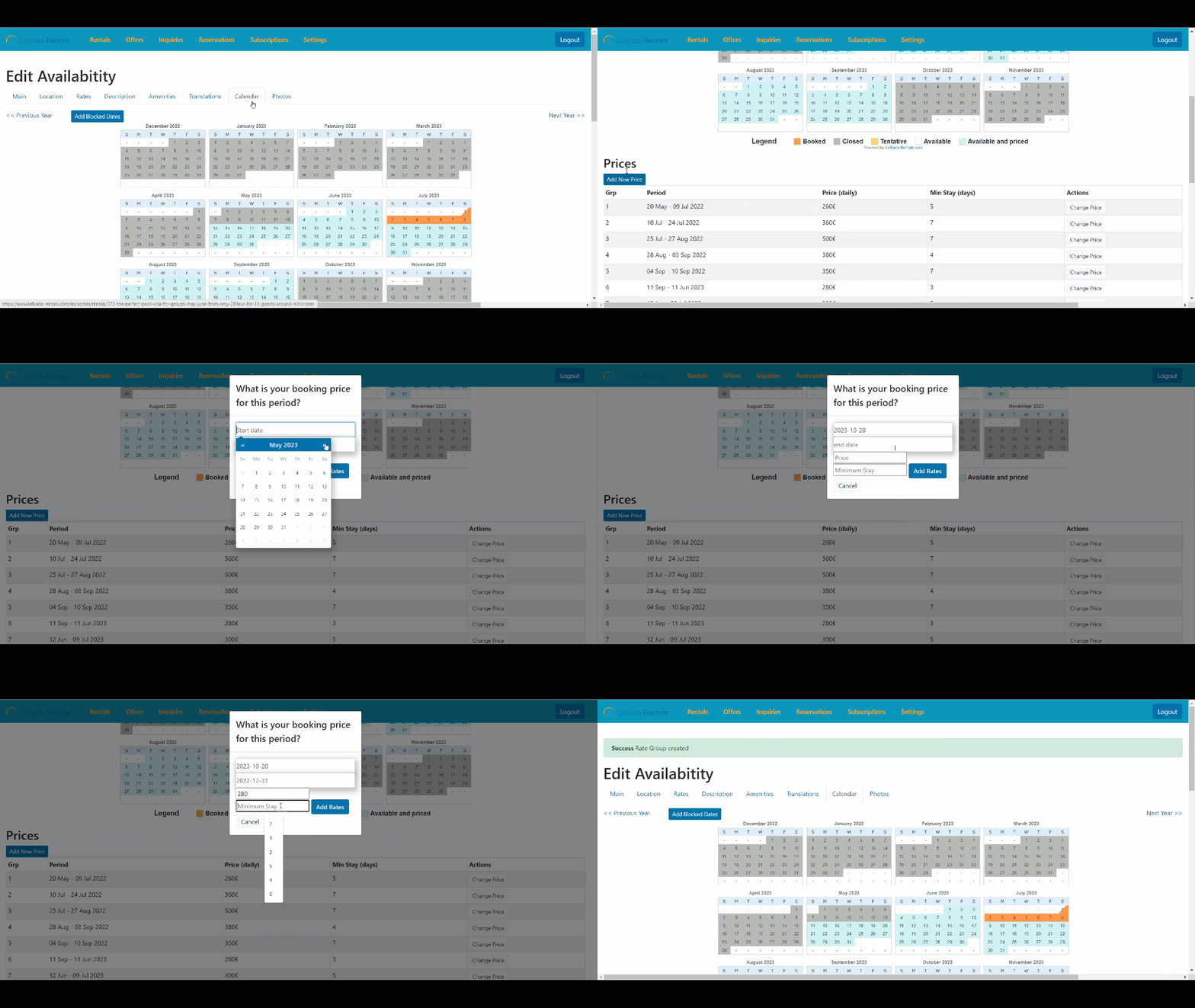
You can easily update your availability calendar (Available dates, Closed, Booked and Tentantive) on every rental by selecting the “Calendar” tab.

Then, you can just click the button “Add New Price” and fill in the pop up window the dates, the price of the period and the minimum stay for the period you wish to edit.

You click “Add Rates“.  After this process your rates has been stored. Then you are ready to press “Add New Price” for the next period you would like to add rates.

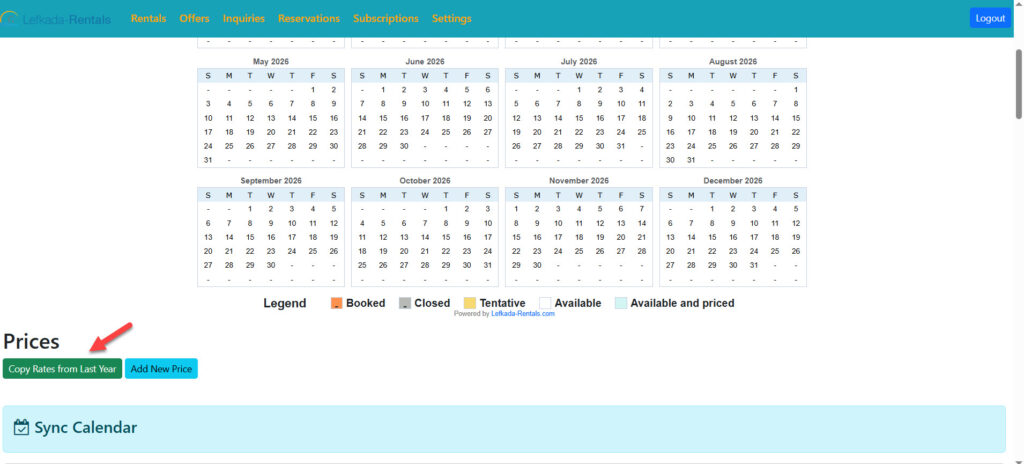
In case you wish to re-enter the previous years rates, there is available a brand new feature can definitely save you time 👍

Using the “Copy Rates from Last Year” button is usually the quickest way to:

  • Keep pricing consistent
  • Avoid manual re-entry errors
  • Speed up annual updates

Just remember to review the copied prices for any changes in rates before finalizing.

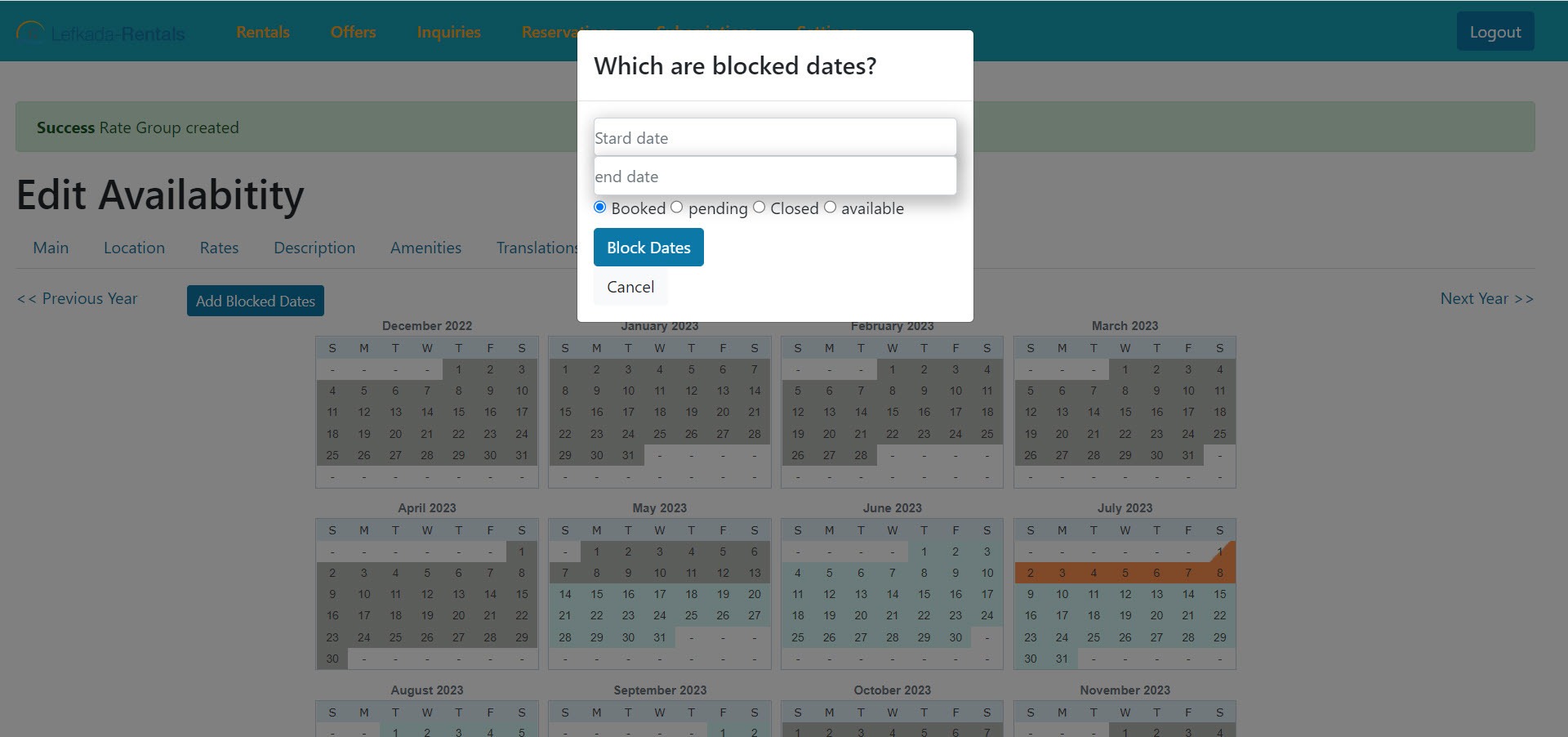
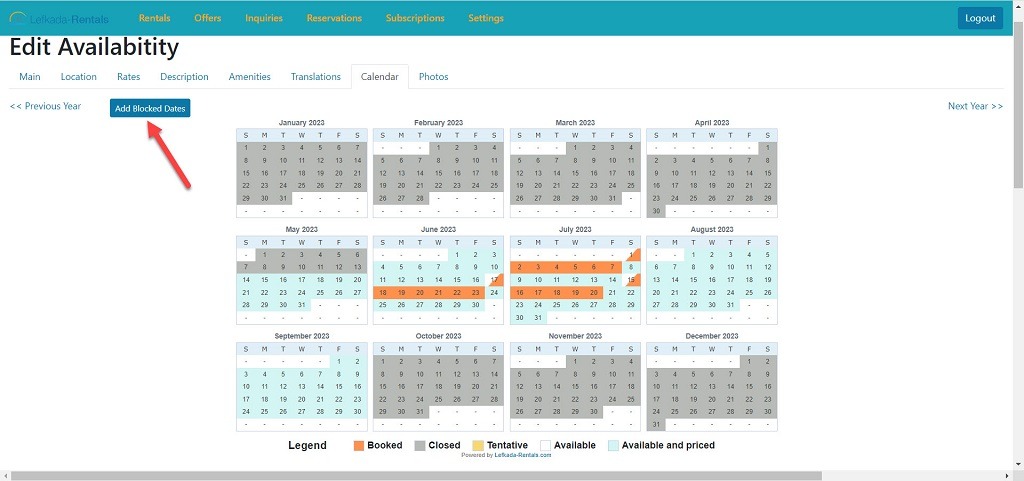
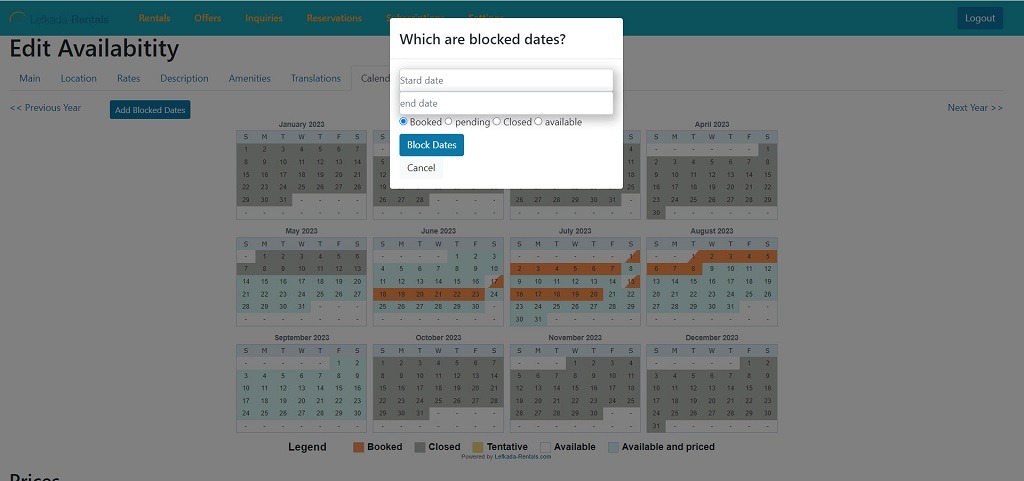
If you want to set the blocked, pending or closed dates, press “Add Blocked Dates” and complete the period you with any status apply for these dates. The options are “Blocked”“Pending”“Closed”  or “Available” and then press the button “Block Dates”. In order to Save the information you should press again “Update Rental”.

5 Vacation Rental Listing Advises

Writing your vacation rental listing description can be a chore. Frankly, we love writing them, but we know that, for many, it’s a task rather than a passion!

This is why we’ve created a simple page with 5 vacation rental listing advises to get you motivated and inspired, as if you were part of the Lefkada-Rentals team of crazy VR-writing fanatics!

Whether you’re about to write your vacation rental listing site description from scratch, or whether you’re looking to refine it, our 5 advises aim to help you focus.

  1. Be bold in your headline. If you scan the results of a listing site search you’ll notice the wide array of options available to a guest. Faced with the choice your guest is likely to notice those that stand out. A unique and daring headline will capture their attention. Keep in mind that only 75 chars are available. So use them wisely. A simple property name, means nothing to the guest.
  2. Marry your photos. Photos certainly sell. Find the best and most attractive view of your property and put it as main image. Present all areas of your rental (bedrooms, living room, bathrooms and of course outdoors).
  3. Hit “Enter” a few more times. Faced with a giant wall of text your guest is likely to skip past most of it. Result? You’ve lowered your probability of them making an inquiry or booking. Shorten the paragraphs and keep your potential guest-focused. Pointless to mention that at least 1500 characters are necessary for a text description.
  4. Add personal pronouns. Don’t play the Four Seasons corporate card! Your guests are in the market for a vacation rental stay. Which means keeping it real with words like “we”, “us”, and “you”.
  5. Summary for your SEO. Don’t forget the important part of the summary. This is your unique chance for marketing your property with a very Search Engine Friendly text.

We hope you now feel more equipped to create a vacation rental listing description that sings; good luck!

Can I have my listing translated in other languages?

You can add translated texts of the descriptions of your properties. For now, we allow German and Italian translations, but soon more languages will be available to the owners.

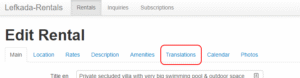
Once you login to our Control Panel, click on the “Translations” tab.

There, you can add translated texts for the titlesummary and description of your listing. All the rest details (amenities, bedrooms etc) are automatically translated by us, in Lefkada-Rentals.com

If you don’t have translated texts, please, contact us in order to help you!

Can I set an Offer for my Listing?

You can add a special Offer for your listing, get extra promotion and of course more inquiries. This way, you can set an “Early Booking Offer”, a “Last minute Cancellation Offer”, or simple Offer a Discount for a specific period of your season. It is very common among travellers, the research for a Special Discount among the many available options. Every Offer, once it is “activated”, it is valid for 3 weeks (21 days). After that, the Offer expires and becomes inactive. This way, only real special deals are promoted.

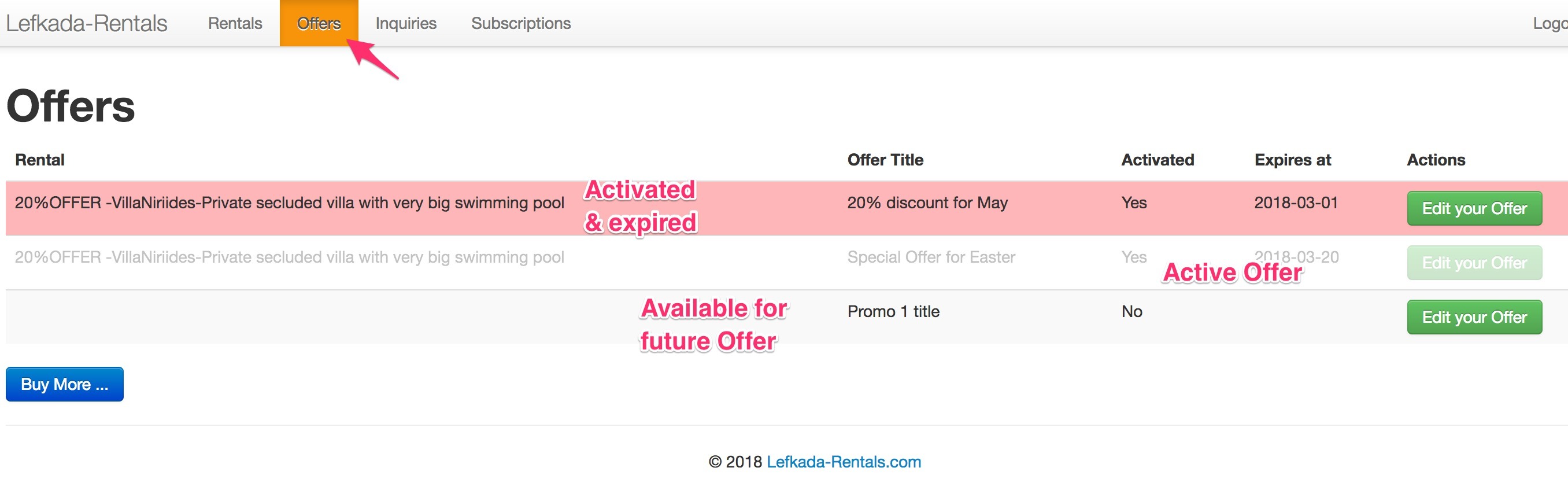
Once you login to our Administration Panel, you will find the option “Offers” in our top menu. There, you can find all your bought offers (available for the future or already activated). See screenshot.

offers

The Offer with the red background (1st Offer), means that this Offer had been activated in the past and expired. The grey Offer (2nd one) means that this Offer is Activated and currently promoted. The 3nd Offer is an available Offer for future usage. You can “Edit”, set all details and then “Activate” it.

edit-offer

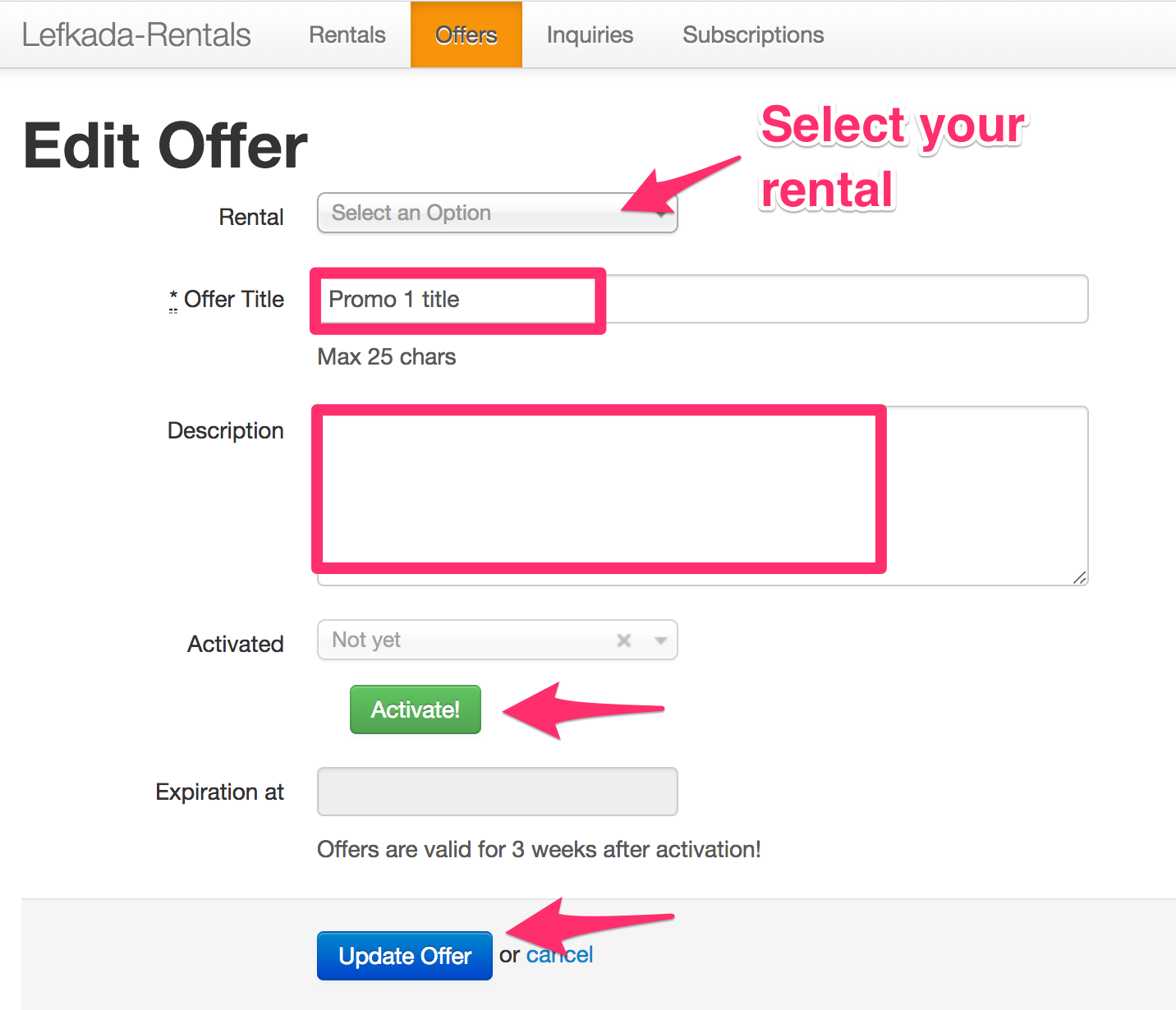
For every Offer, you must set the associated Rental which is valid for this Offer, fill the “Offer Title” (maximum 25 characters) and detailed description. You can edit and update your Offer as many times as you want. When your Offer is ready, you simply click on “Activate!” button and then your Offer becomes public to the travellers.

All Active Offers are automatically added to our special section for Offers, but also promoted in all other sections. If you have used all your available Offers, you can simply ask to buy extra 5 Offers, which they can be used and activated whenever you desire.

Take advantage of our brand-new rules and quickly set up your special offer to be automatically calculated at the potential customer rate.

By enabling a special offer and setting it up with the right rules, you increase your chances of getting a booking. Your offer will gain more exposure on the popular ‘Special Offers’ page, while customers see their final rate automatically calculated, including the discount price.

Here are practical examples to illustrate how rate rules can be set up:

  • Long Stay Discount: For eg. Offer a 10% discount for guests booking more than 8 nights. This incentive encourages longer stays, reduces turnover costs, and stabilizes booking flow.

  • Occupancy-Based Discount: For eg. If a villa has a capacity of 8 people but the guest inquiry is for only 2 people, automatically apply a 15% discount on the rate. This offers flexibility to smaller groups and avoids leaving the property underutilized without pricing incentive.

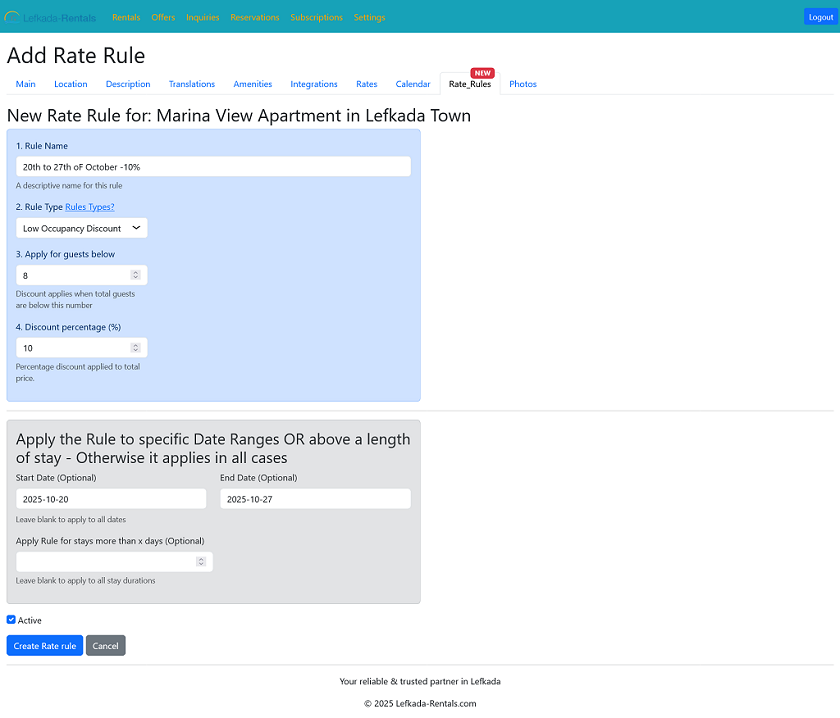
  • Custom Special Offer for a specific period:For eg., set a 10% discount for the dates from October 20th to October 27th if your property is available and not yet booked. Choose the Low Occupancy Offer. Apply the 10% discount for your preferred number of guests. Finally, you just have to select the exact week or date range when your property is available and create this rate rule from the blue button.

These dynamic pricing rules can be customized and applied for any specific period defined by the owner to reflect seasonal demand, special events, or promotional campaigns. Automation within a pricing system allows these rules to update rates in real time based on current inquiries and booking data.

Implementing such clear and adaptable rate rules helps balance guest satisfaction with revenue optimization, ensuring pricing is competitive and fair while maximizing rental returns.

If you need any further help, please, do not hesitate to Contact Us.

How can I add my Rental Registry Number (A.M.A)?


According to the greek law, every property should have a Rental Registry Number (A.M.A). If the property operates as business it will be the MHTE number.

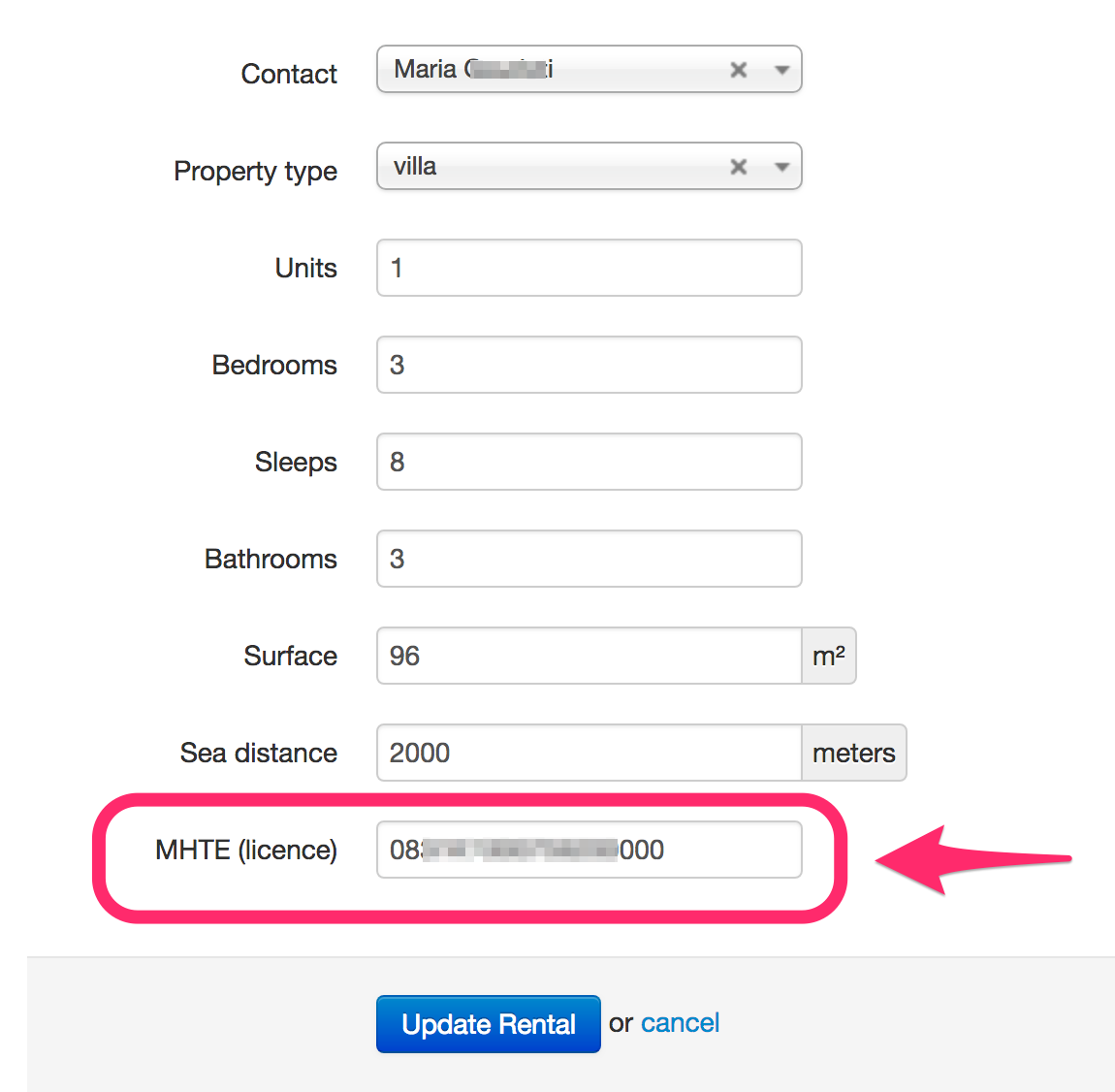
Once, you take the number, you should present it on your online listings. In our platform, you can add this number, on your Control Panel, under the Main tab, as presented in the following image:

ama

Details about how you can take the Registry number can be found here:

https://www.aade.gr/polites/akineta/brachychronia-misthose-akineton


How can I accept reservations, after my approval?

You can now activate Reservations for every rental you want.

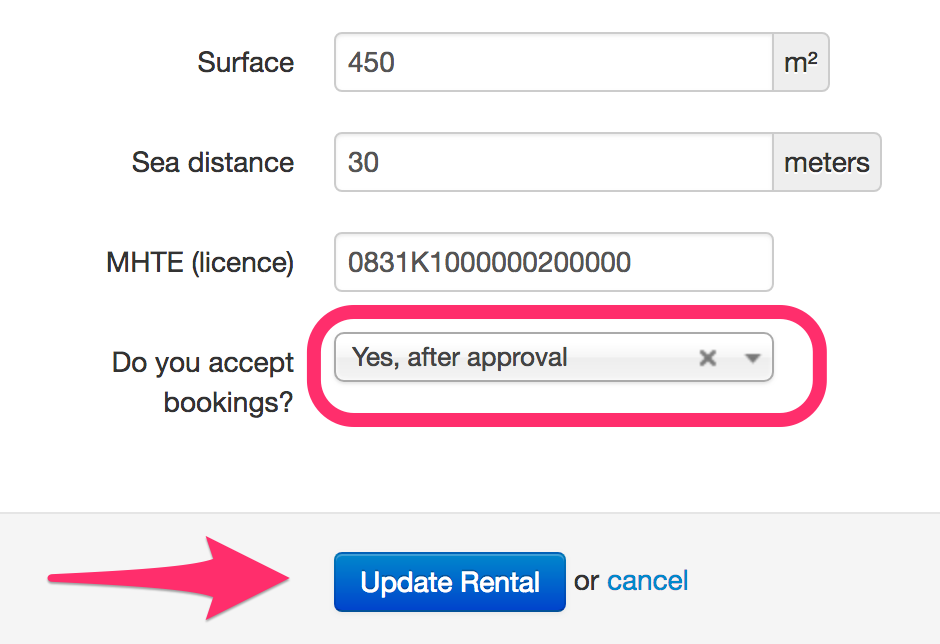
Once you login to our Control Panel, open the Rental you want to activate, select the Main tab and then under “Do you accept bookings?” question, select the option “Yes, after approval” and click “Update Rental” button.

approval

You can also set your downpayment percentage (the Initial Deposit can be 20-40% of the Total Price), by setting this number, based on your desire. The “Initial Deposit” goes to your paypal account (or bank) and the remaining balance, based on your payment policy (ex. cash on arrival, bank transfer 7 days prior of arrival etc)

Keep in mind, that it is important all specific rates are added for the property and availability is updated. If there are missing rate periods, your guests will not be able to Request to Book for these dates.

Do not hesitate to contact us, if you have any questions.

I want my Listing on Top of your lists

We are sure that all owners want their listing on top of our lists. And this makes sense, since statistics say that “The higher your listing, the more Inquiries” you receive!

Unfortunately, we cannot set all listings on top of our results, event though we have specific lists, based on your guests’ desire (ex. if they are looking for Villas in Sivota, Apartments in Nidri, a Sailing boat, an Exclusive Hi-end Villa, something very close to the sea etc)

Of course, you can select a higher promotional package (ex. Advanced or Premium), which leads your listing much higher at once. But promotional packages are only 3 and the current rentals are more than 700+. 

So, we follow some rules. And our rules are based on your guests’ needs. They want to see all possible details about your property, before they decide to book. And our system algorithm, which is updated 3 times per day, sets your listing based on the following factors:

  • Long descriptions of your properties and full details about your payment and cancellation policy, set your property higher.
  • Translated texts in more languages, help your property go higher.
  • Detailed prices per day and updated availability calendars, set your property higher.
  • Activated Special Offers for Limited period, set your property higher.
  • If you accept Online Reservations, you set your property higher.
  • If you have a high-rate of confirmed reservations.
  • If you have a high-score in your reviews.
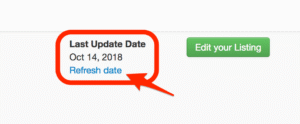
  • Frequent updates or edits of your Listing, set your property higher.
The algorithm is automatically updated 3 times per day. So, the better and more updated details you provide to your guests, the more inquiries you receive, the more bookings you get!


How to create Rate Rules for Dynamic Pricing?

Introduction

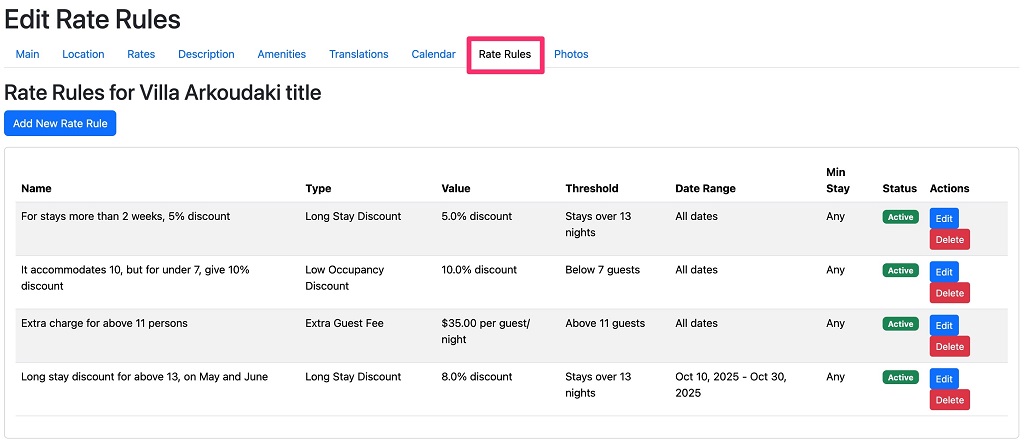
Rate Rules are powerful pricing tools that automatically adjust your rental property rates based on specific conditions such as guest count or length of stay. This dynamic pricing functionality helps maximize revenue and increase bookings by implementing sophisticated pricing strategies that respond to different booking scenarios. Rate Rules allow you to offer incentives for longer stays or smaller groups, or to charge appropriately for larger parties that incur additional costs.

rate-rules
Rate rules for dynamic pricing

This customizable approach to pricing gives you greater control over your revenue management while providing flexibility to attract different types of guests.

Types of Rate Rules:

  1. Extra Guest Fee

The Extra Guest Fee rule adds an additional charge per night for each guest above a specified threshold. This is ideal for properties where hosting additional guests increases costs or causes additional wear and tear.

Example: You have a 8-person villa with a base price of €100/night, but extra guests require additional utilities and cleaning.

  • Rule Setup: €20 per extra guest per night above 8 people
  • Booking Scenario: A family of 10 books for 7 nights
  • Calculation:
    • Base price: €100 × 7 nights = €700
    • Extra guests: 2 people × €20 × 7 nights = €280
    • Final price: €700 + €280 = €980

When to Use:

  • When hosting additional guests increases your costs
  • When you can accept larger groups but want to offset additional wear and tear
  • When you provide extra amenities or services for larger parties


  1. Low Occupancy Discount

The Low Occupancy Discount rule offers a percentage discount on the total booking price when the number of guests is below a specified threshold. This helps attract smaller parties to properties that might otherwise seem too large or expensive.

Example: Your 4-bedroom villa can accommodate up to 8 people, but you want to attract couples or small families.

  • Rule Setup: 10% discount for bookings with fewer than 5 guests
  • Booking Scenario: A couple books for 5 nights at €150/night
  • Calculation:
    • Base price: €150 × 5 nights = €750
    • Discount: €750 × 10% = €75
    • Final price: €750 – €75 = €675

When to Use:

  • To increase occupancy during off-peak seasons
  • To attract couples or small families to larger properties
  • When smaller groups use less utilities and require less cleaning


  1. Long Stay Discount

The Long Stay Discount rule applies a percentage discount to bookings with a duration longer than a specified number of nights. This encourages extended stays and reduces turnover costs.

Example: You want to encourage longer bookings to reduce turnover and cleaning costs.

  • Rule Setup: 10% discount for stays longer than 13 nights
  • Booking Scenario: A family books your apartment for 14 nights at €120/night
  • Calculation:
    • Base price: €120 × 14 nights = €1,680
    • Discount: €1,680 × 10% = €168
    • Final price: €1,680 – €168 = €1,512

When to Use:

  • To encourage longer stays and reduce turnover
  • To maximize occupancy during shoulder seasons
  • To compete with monthly rental options in your area


Customizing Restrictions on Rate Rules

All rules can be further refined using additional parameters:

Date Range: Apply rules only during specific periods (e.g., high season, off-season, events)

Minimum Stay: Apply rules only to bookings above a minimum number of nights

Advanced Example: Create seasonal pricing strategies:

  • High Season (July-August): €25 fee per extra guest above 6 people
  • Low Season (May or October): 20% discount for groups smaller than 4 people
  • Year-round: 15% discount for smaller groups but for longer than 5 nights stay


Setting Up Rate Rules

To set up rate rules for your rental:

  1. Go to your rental’s dashboard
  2. Navigate to the “Rate Rules” section
  3. Click “Add New Rule”
  4. Choose the rule type
  5. Set the parameters (threshold, value)
  6. Optionally, specify date ranges and minimum stay requirements
  7. Save your rule

Rules are evaluated in order and can be combined to create sophisticated pricing strategies. When multiple rules of the same type apply, only the first matching rule of each type will be used. You can apply one rule of each type simultaneously (one Extra Guest Fee, one Low Occupancy Discount, and one Long Stay Discount).


Frequently Asked Questions

Q: Can I apply multiple rules to the same booking? A: Yes! Different types of rules can apply simultaneously. For example, a booking could receive both a low occupancy discount and a long stay discount if it meets both criteria. However, only one rule of each type will apply.

Q: Do rate rules affect my base rates? A: No. Rate rules apply adjustments on top of your existing daily rates. Your base calendar rates remain unchanged.

Q: Can guests see the rate rules applied to their booking? A: Guests will see the final price with all rate rules applied. They won’t see the individual rules or calculations, but they will benefit from any applicable discounts.

Q: How do I know if my rate rules are working? A: You can test your rules by creating a mock booking with different guest counts and dates. The system will show you the calculated price with all applicable rules.

Need Help? Contact our support team if you need assistance setting up rate rules or have questions about pricing strategies for your property.

How do I start with my new Calendar?

You just obtained an Availability Calendar (for “Advanced” or “Premium” packages). It is now time to set the “Closed” days of your property, the Available days and their corresponding prices.

Then, you start by adding the Rates periods. Click on the first day of the season, until the end of your “low season” and set the price. Continue with the rest, the “medium”, the “high” and the “peak” seasons. Every time, you set the daily price for them.

If you have setup a price for a period, you will see your calendar with a light blue color, so you know what is left.

Also, if you let your mouse over a “priced” day, you will see the price for these days.

Of course, you can also check, the auto-updated Rates table into your listing.

For Guests

Your Easy Booking Guide on Lefkada-Rentals.com

Travelers & Visitors information

How does Lefkada-Rentals work for Guests?

With Lefkada-Rentals.com, finding your perfect place to stay is simple and easy! As Guest who wants to visit Lefkada island, you have the flexibility to choose which type of property suits your needs. With our large inventory of property listings, you can find almost anything. So, whether you are looking for a budget single bedroom studio, a large luxury villa, a big yacht or a car for your holidays, we have that all covered!

Here is a summary on how Lefkada-Rentals works for you!

A) On the homepage, start by typing in check-in/check-out date and the total number of guests. Click on Search to check the available property listings.

B) Once you retrieve the results, you can change the dates and search again (1), you can adjust the desired price (2), or you can refine the results with some criteria (3). You can click anywhere on the property to see more details for each property.

C) After you review the properties, you can send a message to the owner, or request to book, using the Contact the Owner form, at the top right-hand side of the page.

Don’t forget that we provide you direct contact with the owners, without any extra cost or service fee. The prices you see here, are the best prices you can find on the internet for their properties.

If you didn’t find the perfect holiday rental for your needs, do not hesitate to contact us, so we can help you with your research.

I sent an inquiry to the owner and haven't heard back yet. What should I do?

Property owners may receive multiple inquiries every day and sometimes they may have overlooked some of their inquiries. Feel free to send a follow up message to remind them about your inquiry.
To increase your chances of your inquiry being accepted by the property owner or the property manager, you should provide as much information as possible in your inquiry (international phone number, requested dates, number of persons etc)
Another option is to try call him or her straight to the given phone numbers, found on the Contact the Owner form.
If you haven’t heard back after a reminder, it is probably because the host cannot accommodate your request or because he has a problem with his email server. In this case, feel free to inform our Customer Support about this issue.
Another problem could be your wrong email address. If you haven’t received a confirmation email by Lefkada-Rentals.com with the details of your inquiry, right after your sent Inquiry, that means that you may have misspelled your email address or it is in your spam folder. Please, try again and pay special attention to your email address.

Do I pay anything extra for your service?

No, there is not any hidden fee, extra charge or commission when you use our service.
You only pay the agreed amount to the owner, and we do not charge you anything extra, either you as a guest, or the property owner!
This way, you get the best price the owner can give!
Even if you pay online via our platform (see how), using your credit card, the total amount of the initial deposit (usually 30% of the booking price), goes straight to the owner, right after your Check-in to his property.

Give me some basic travel information about Greece

Official language is Greek. Greece uses metric system (kilograms, centimeters, °C). Time zone is UTC+02:00 with daylight saving time.

Electricity

Greece uses 230V, 50Hz with sockets and plugs Type C and Type F.

Currency

Greece uses the Euro (symbol: €), code EUR.

Banknotes come in denominations of 500, 200, 100, 50, 20, 10 and 5 Euro. Euro is subdivided into 100 Cent. Coins come in denominations of 2 and 1 Euro and 50, 20, 10, 5, 2 and 1 Cent.

Phone

You can buy a SIM card for about 23.60 EUR, which includes 2 gigabytes (GB) of data plan. You can choose from 3 network providers: Cosmote, Vodafone or Wind. Greece uses GSM mobile networks GSM 900 and GSM 1800. 4G mobile network is available in many areas in Lefkada.

Internet

Internet speed in Greece is on average 7.3 Mbps. Most of the properties provide high speed internet connection. There are also many public areas, specially in Lefkada town, Nidri and Vasiliki with free wifi. Moreover, there are many internet cafes with available computers.

Dial code

+30

To call Greece, dial + or 00, then 30 (the country code for Greece), then the area code and the local number (2…), or the given mobile number (69…)

Vaccinations

No vaccinations are required to enter the country, but it is recommended to perform routine immunizations for your protection and to prevent the spread of infectious diseases.

Important numbers

Police 112

Ambulance 112

Fire department 112

Police 100

Ambulance 166

Fire 199

Forest fire 1591

Coast guard 108

Counter-narcotics 109

Tourist police 171

Social aid 197

You can also find plenty of useful tips and guidelines about Greece, Ionian Islands and Lefkada, in our Lefkada Travel Guide.

If you are looking for more specific info, and we are able to help, please contact us.

How can I book the villa I like?

Many Rentals provide the option of “Online Booking”. Once you select the villa you like, select the desired dates of arrival and departure. Then the Total Price of the booking will be presented to you.

If you agree, click on “Request to Book“, after having filled all the details (name, email, adults, phone etc).

The owners can always make a better offer, giving you a discount of the initial price, specially if they see that you are seriously interested in booking their property!
Then, after you see a Preview of your Reservation details, you can proceed to the pre-payment via paypal or credit card. Keep in mind, that you will not be charged, before the Owner accepts your Reservation request, within 24 hours (usually they accept after 1-2 hours).
It is also important for you to know, that you pay only 30% of the Booking Price, which is transferred to the owner, right after your check-in date, for your security. Keep in mind that this amount is guaranteed by Lefkada-Rentals.com and you get an immediate confirmation.
The remaining 70% of the booking price, is paid to owner, according to his policies (usually on arrival).
IMPORTANT: For this service, you are not charged anything extra (NO Service Fees for our guests)!!!

"Request to Book" or "Send Inquiry"

You may wonder why there are 2 buttons for your contact with the owner.

“Send Message” is used in any general case where the guests want to send a message to the owner. They may ask a generic question, without specific dates or price. Every rental can receive a generic message. Any communication or payment to the owner via bank transfer, is not via our platform, so we cannot guarantee the amount of the deposit, even though we can guarantee the reliability of the owners we advertise.

“Request to Book” concerns a potential booking request, for specific dates and number of persons. Only if the owner provides detailed pricing, this button is activated. The owner may also change the price and offer a discount of this initial price, after your communication. Also, if the guests want, after the communication with the owner, they can proceed with a pre-payment of the initial deposit (usually 30% of the total booking price), via our online payment platform (with Credit Card or Paypal). For their security, this downpayment, is transferred to the owner right after the check-in (without any extra service fee) and this amount is guaranteed by our portal.

“Book Now” is an extra 3nd button where some owners give the option of Instant Booking, without any previous communication, if guests want. If the guests have found the perfect villa for their holidays, they can proceed to a direct booking and secure their reservation immediately. They pay 30% of the booking price in order to secure their reservation and this amount is also guaranteed by our portal.
Portals & Sites

Portals and Websites: Definitions and Functions.

What is a portal?

A Portal is a website that offers to list your vacation rentals for travelers to find. Some of the most known are: HomeAway, FlipKey (a TripAdvisor company), AirBnb, VRBO, HolidayLettings, OwnersDirect and many others.

Travelers prefer looking for properties and booking via a web portal, instead of individual sites of each owner. This way, they can refine their search, based on their specific needs, and compare between all available properties in the area they are interested in.

Lefkada-Rentals.com is a portal, with properties from Lefkada island only. So, guests know that they can find the best info for local properties, by a local company running here, in our beautiful island, Lefkada.

What is a portal's listing?

A portal’s listing refer to your vacation rental advert on a portal. This is a page dedicated to your property on the advertiser’s website.

In Lefkada-Rentals.com we create a specific page for your listing, using top-notch SEO technics, promoting your property.

Using our online control panel, you can edit/update your listing, whenever you desire, providing full details to your guests.

What is the "Sync Calendar" section?

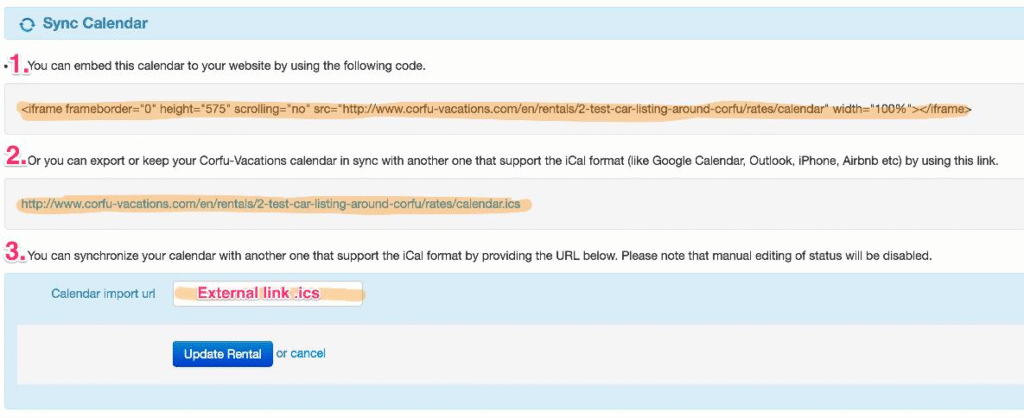
“Sync Calendar” section, is a set of settings for your help. You can find it under the Availability Calendar, in “Calendar” tab.

There are 3 synchronization options, available on “Advanced” & “Premium” packages. 

  • You are able to embed the auto-updated calendar to your site (option 1). Simply add once the given link to your site and you are ready.
  • Also, you can export (Sync-Out) the auto-updated calendar, to other portals or calendars (like Airbnb, Outlook, iPhone etc) (option 2)
  • Finally, you can import (Sync-In) an iCal link, so your Lefkada-Rentals listing will remain automatically updated whenever you update your data from a source that supports iCal (.ics) exports (option 3)

You can automatically synchronize your availability calendar using, some of the following options:

What is a "Per Booking" listing?

If you -as an owner of a holiday rental- want to register your property in Lefkada-Rentals.com, you can either select one of our 3 main types of listing (Advanced, Premium), or ask for a “Per Booking” listing.

This is an extra option, where you can present the full details of your property (texts, photos, calendar, and detailed prices), but instead of receiving emails from your guests, you receive “Messages” and you should reply to them via our platform. Also, you receive “Online Reservations”, instead of simple inquiries and general questions. For this reason, it is mandatory for you as an owner, to have the detailed prices always updated and the latest by the 15th of December of each current year for the next summer season. The full details of your customer, are available to you, right after your confirmation of the booking.

For a “Per Booking” listing, you don’t need to pay any annual fee, but we keep a small booking-fee, which covers the expenses for your advertisement and the transactions fees (credit card, bank fees).

For more details, do not hesitate to contact us.

Can I integrate any Lefkada-Rentals widgets on my website?

Yes, Lefkada-Rentals currently provides 3 widgets for your website. They can be easily embedded with a single line, and enhance the user experience of your guests and make your website look more professional and always updated!

Here are the three options:

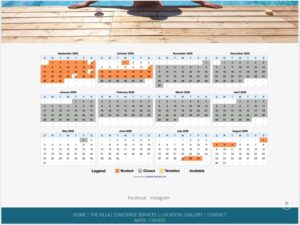
Embed your calendar to easily keep visitors informed about your availability.


Embedded availability calendar

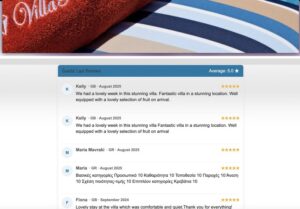
Showcase your reviews to highlight the trust and satisfaction of your customers.

Guests' Reviews
Last Guests’ Reviews

Add a user-friendly contact form that makes it easy for your audience to get in touch with you directly in a more professional way.

Advanced Contact Form


For support or questions about these widgets, please contact us at [email protected]

Can I embed the calendar into my site?

Yes, we make it really easy to embed your availability calendar into your website, but also Facebook pages, blogs etc

Embedded availability calendar


Simply, copy the one-line code you find in the “Sync Calendar” settings and paste it wherever you wish, into your pages.

calendar-sites

If you have difficulties adding this piece of code to your website, please consult your web programmer/developer, or send us a message to assist you.

Can I add a Booking Request Widget for my website?

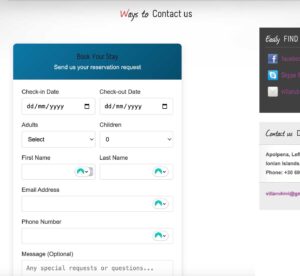
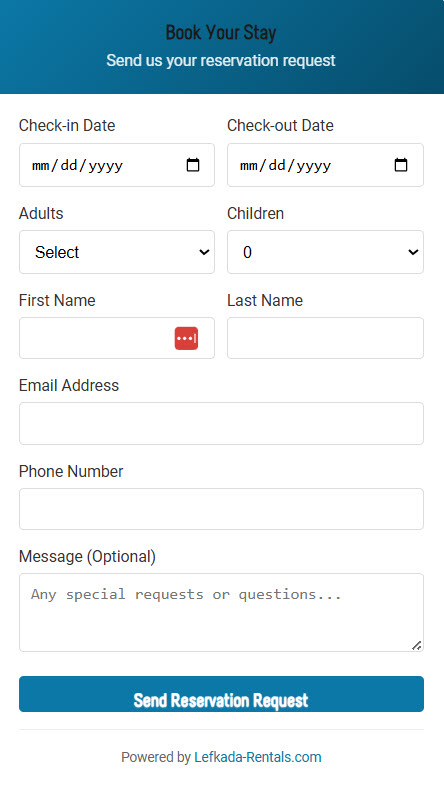
Yes you can add a Booking Request Widget to your website, and it’s fast and easy. Lefkada-Rentals.com provides you an embed code or widget script that you just copy and paste into your site’s HTML.

📱 Features

  • ✅ Professional booking experience – gives your guests a seamless reservation process
  • ✅ Responsive design – works on all devices
  • ✅ Static site compatible – works without server-side processing or email servers
  • ✅ Form validation – prevents invalid date selections & ensures all required fields are filled
  • ✅ Spam protection – blocks automated submissions by spam bots
  • ✅ Loading states – visual feedback during submission (soon with: availability & rates)
  • ✅ Error handling – graceful error management
  • ✅ Online payments (optional) – accept credit card payments without additional installations
  • ✅ Owner notifications – automatically sends reminders about upcoming guest arrivals
  • ✅ Review generation (optional) – automatically encourages guests to leave reviews after their stay
  • ✅✅ Completely free – no extra cost for all properties advertised on Lefkada-Rentals.com

📋 Integration Instructions

To use this widget on your website, simply add the following code:

<!– Include the widget script –> <script src=”https://www.lefkada-rentals.com/widget/lefkada-booking-widget.min.js”></script> <!– Place the widget container –> <div data-lefkada-widget data-rental-id=”123″ data-rental-title=”Your Property Name”></div>

🎛️ Configuration Options

  • data-rental-idRequired – The ID of your rental property
  • data-rental-titleOptional – Display name for the property

🚀 Live Demo

Embedded Contact Form

🎨 Customization

The widget can be customized with CSS by targeting the .lefkada-booking-widget class and its child elements.

/* Example: Change widget width and colors */ .lefkada-booking-widget { max-width: 500px; } .lefkada-widget-header { background: linear-gradient(135deg, #your-color1, #your-color2) !important; } .lefkada-submit-btn { background: #your-button-color !important; }

🔗 Support

For support or questions about this widget, please contact us at [email protected]

Can I add my Lefkada-Rentals reviews on my website?

Showcase authentic guest experiences directly on your website

Build trust and credibility with potential guests by displaying verified reviews that automatically update as new reviews come in – no maintenance required!

📱 Key Features & Benefits
  • ✅ Automatically updated – reviews sync in real-time with our database
  • ✅ Verified authentic reviews – only from real guests who have stayed at your property
  • ✅ Dynamic content – reviews refresh automatically without you doing anything
  • ✅ Mobile responsive – looks great on all devices, from phones to desktops
  • ✅ Lightweight – minimal impact on your website’s loading speed
  • ✅ SEO friendly – helps search engines recognize your property’s reputation
  • ✅ Zero maintenance – no need to manually update or moderate reviews
  • ✅ Professional design – matches any website with clean, modern styling
  • ✅ Customizable – control how many reviews to display
  • ✅ Works on ANY website – WordPress, Wix, HTML, even static sites!
  • ✅ Completely free – included with all listings on Lefkada-Rentals.com
💡 Why Add Reviews to Your Site?
  • 🏆 Build trust – 93% of consumers say online reviews impact their purchasing decisions
  • 🔄 Reduce bounce rate – keep visitors on your site longer
  • 💰 Increase conversions – visitors are more likely to book after reading positive reviews
  • 🔍 Improve SEO – fresh, dynamic content signals quality to search engines
  • 🤝 Social proof – leverage the experiences of past guests to convince new ones
Did you know?

Properties with visible reviews get up to 35% more inquiries than properties without reviews. Adding this widget can directly impact your booking rate!

📋 Quick Integration

To use this widget on your website, simply add the following code:

<!– Place the widget container –> <div data-lr-reviews-widget data-rental-id=”123″ data-limit=”5″></div> <!– Include the widget script –> <script src=”https://www.lefkada-rentals.com/widget/reviews-widget.min.js”></script>

That’s it! No databases, no API keys, no complicated setup. Just copy-paste and you’re done!

🎛️ Configuration Options
  • data-rental-idRequired – The ID of your rental property
  • data-limitOptional – Number of reviews to display (default: 5, max: 10)
🚀 Live Demo

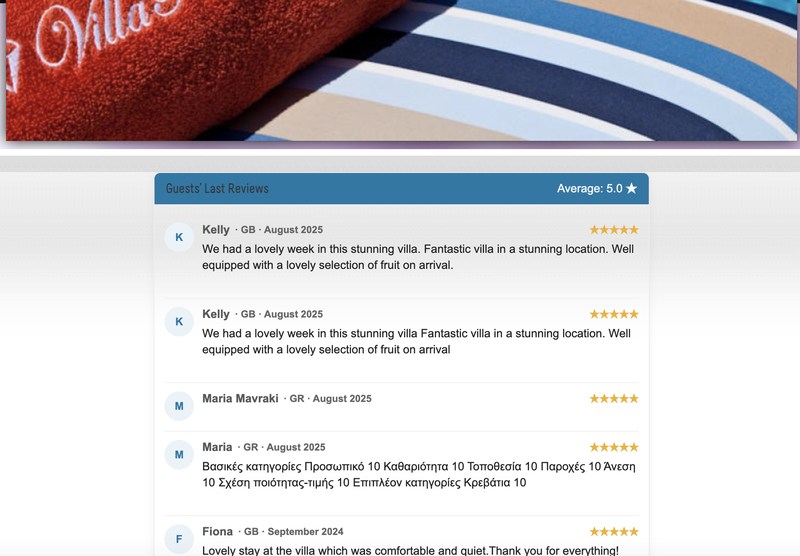
Here’s how the widget looks with real reviews:

Guests’ Last Reviews

Average: – ★

No reviews yet.

🛠️ Works on Any Platform

Our widget works seamlessly on any website platform, including:

  • WordPress
  • Wix
  • Squarespace
  • Shopify
  • HTML static sites
  • Custom-built websites

No plugins, extensions or technical knowledge required!

🎨 Customization

The widget can be customized with CSS by targeting the .lr-reviews-widget class and its child elements.

/* Example: Change widget width and colors */ .lr-reviews-widget { max-width: 500px; } .lr-header { background: #your-primary-color !important; } .lr-rating { color: #your-accent-color !important; }
📈 Benefits for Property Owners
  • Synchronization: Reviews submitted on Lefkada-Rentals.com automatically appear on your website
  • Credibility: Third-party verified reviews are more trusted than self-published testimonials
  • Time-saving: No need to copy-paste reviews or update your website
  • Fresh content: Your website stays current with new reviews automatically appearing
🔗 Support

For support or questions about this widget, please Contact Us

Can I synchronize with "iCalendar" (Airbnb or Booking calendars)?

Yes, our sync service supports automatic synchronization using iCalendar (.ics) formerly known as iCal calendars.

This means you can automatically synchronize and use the availability calendars of your properties across platforms such as Airbnb.com, Booking.com, Google Calendar, and many others.

You can find the corresponding calendar link for each property in the “Sync Calendar” section.

In addition, you can also import and synchronize updated calendars from other portals (e.g., Airbnb, Booking.com, etc.).

You can find all the information on how to export links in the official support pages of Airbnb.com or Booking.com

icalsync
ical-sync

Can I export my data to other services?

Yes, you can export your data of Calendar to the popular iCal format.

This way, you simply update your Availability Calendar into Lefkada-Rentals.com and we automatically update the external services and portals (like your iphone, android calendar, HomeAway, airbnb etc)

You simply use the autogenerated link in “Sync Calendar” settings tab

I sent an inquiry to the owner and haven't heard back yet. What should I do?

Property owners may receive multiple inquiries every day and sometimes they may have overlooked some of their inquiries. Feel free to send a follow up message to remind them about your inquiry.
To increase your chances of your inquiry being accepted by the property owner or the property manager, you should provide as much information as possible in your inquiry (international phone number, requested dates, number of persons etc)
Another option is to try call him or her straight to the given phone numbers, found on the Contact the Owner form.
If you haven’t heard back after a reminder, it is probably because the host cannot accommodate your request or because he has a problem with his email server. In this case, feel free to inform our Customer Support about this issue.
Another problem could be your wrong email address. If you haven’t received a confirmation email by Lefkada-Rentals.com with the details of your inquiry, right after your sent Inquiry, that means that you may have misspelled your email address or it is in your spam folder. Please, try again and pay special attention to your email address.

For Hosts

Discover step-by-step guides and expert tips in our Host Knowledge Base—your go-to resource for best practices and helpful how-to’s to elevate your hosting experience.

Set up listing

Add details about your listing – photos, description, location, and amenities.
The more complete your setup, the more bookings you attract!

How can I add my property?

Lefkada-Rentals.com is created with the goal to increase tourism in Lefkada. By improving our owner’s community, organizing the rental offers, and making it easier for travelers to discover a perfect place to stay.

Are you a property owner or manager in Lefkada?
For now, you can not automatically signup and add your property into Lefkada-Rentals.com portal.
If you want to add your property/properties in our service, you should Contact Us
We will create an account for you and then you can add/update/change your details online by yourself.

How do I start with my new Calendar?

You just obtained an Availability Calendar (for “Advanced” or “Premium” packages). It is now time to set the “Closed” days of your property, the Available days and their corresponding prices.

Then, you start by adding the Rates periods. Click on the first day of the season, until the end of your “low season” and set the price. Continue with the rest, the “medium”, the “high” and the “peak” seasons. Every time, you set the daily price for them.

If you have setup a price for a period, you will see your calendar with a light blue color, so you know what is left.

Also, if you let your mouse over a “priced” day, you will see the price for these days.

Of course, you can also check, the auto-updated Rates table into your listing.

How can I update my availability and rates?

You can easily update your availability calendar (Available dates, Closed, Booked and Tentantive) on every rental by selecting the “Calendar” tab.

Then, you can just click the button “Add New Price” and fill in the pop up window the dates, the price of the period and the minimum stay for the period you wish to edit.

You click “Add Rates“.  After this process your rates has been stored. Then you are ready to press “Add New Price” for the next period you would like to add rates.

In case you wish to re-enter the previous years rates, there is available a brand new feature can definitely save you time 👍

Using the “Copy Rates from Last Year” button is usually the quickest way to:

  • Keep pricing consistent
  • Avoid manual re-entry errors
  • Speed up annual updates

Just remember to review the copied prices for any changes in rates before finalizing.

If you want to set the blocked, pending or closed dates, press “Add Blocked Dates” and complete the period you with any status apply for these dates. The options are “Blocked”“Pending”“Closed”  or “Available” and then press the button “Block Dates”. In order to Save the information you should press again “Update Rental”.

5 Vacation Rental Listing Advises

Writing your vacation rental listing description can be a chore. Frankly, we love writing them, but we know that, for many, it’s a task rather than a passion!

This is why we’ve created a simple page with 5 vacation rental listing advises to get you motivated and inspired, as if you were part of the Lefkada-Rentals team of crazy VR-writing fanatics!

Whether you’re about to write your vacation rental listing site description from scratch, or whether you’re looking to refine it, our 5 advises aim to help you focus.

  1. Be bold in your headline. If you scan the results of a listing site search you’ll notice the wide array of options available to a guest. Faced with the choice your guest is likely to notice those that stand out. A unique and daring headline will capture their attention. Keep in mind that only 75 chars are available. So use them wisely. A simple property name, means nothing to the guest.
  2. Marry your photos. Photos certainly sell. Find the best and most attractive view of your property and put it as main image. Present all areas of your rental (bedrooms, living room, bathrooms and of course outdoors).
  3. Hit “Enter” a few more times. Faced with a giant wall of text your guest is likely to skip past most of it. Result? You’ve lowered your probability of them making an inquiry or booking. Shorten the paragraphs and keep your potential guest-focused. Pointless to mention that at least 1500 characters are necessary for a text description.
  4. Add personal pronouns. Don’t play the Four Seasons corporate card! Your guests are in the market for a vacation rental stay. Which means keeping it real with words like “we”, “us”, and “you”.
  5. Summary for your SEO. Don’t forget the important part of the summary. This is your unique chance for marketing your property with a very Search Engine Friendly text.

We hope you now feel more equipped to create a vacation rental listing description that sings; good luck!

Can I have my listing translated in other languages?

You can add translated texts of the descriptions of your properties. For now, we allow German and Italian translations, but soon more languages will be available to the owners.

Once you login to our Control Panel, click on the “Translations” tab.

There, you can add translated texts for the titlesummary and description of your listing. All the rest details (amenities, bedrooms etc) are automatically translated by us, in Lefkada-Rentals.com

If you don’t have translated texts, please, contact us in order to help you!

Can I set an Offer for my Listing?

You can add a special Offer for your listing, get extra promotion and of course more inquiries. This way, you can set an “Early Booking Offer”, a “Last minute Cancellation Offer”, or simple Offer a Discount for a specific period of your season. It is very common among travellers, the research for a Special Discount among the many available options. Every Offer, once it is “activated”, it is valid for 3 weeks (21 days). After that, the Offer expires and becomes inactive. This way, only real special deals are promoted.

Once you login to our Administration Panel, you will find the option “Offers” in our top menu. There, you can find all your bought offers (available for the future or already activated). See screenshot.

offers

The Offer with the red background (1st Offer), means that this Offer had been activated in the past and expired. The grey Offer (2nd one) means that this Offer is Activated and currently promoted. The 3nd Offer is an available Offer for future usage. You can “Edit”, set all details and then “Activate” it.

edit-offer

For every Offer, you must set the associated Rental which is valid for this Offer, fill the “Offer Title” (maximum 25 characters) and detailed description. You can edit and update your Offer as many times as you want. When your Offer is ready, you simply click on “Activate!” button and then your Offer becomes public to the travellers.

All Active Offers are automatically added to our special section for Offers, but also promoted in all other sections. If you have used all your available Offers, you can simply ask to buy extra 5 Offers, which they can be used and activated whenever you desire.

Take advantage of our brand-new rules and quickly set up your special offer to be automatically calculated at the potential customer rate.

By enabling a special offer and setting it up with the right rules, you increase your chances of getting a booking. Your offer will gain more exposure on the popular ‘Special Offers’ page, while customers see their final rate automatically calculated, including the discount price.

Here are practical examples to illustrate how rate rules can be set up:

  • Long Stay Discount: For eg. Offer a 10% discount for guests booking more than 8 nights. This incentive encourages longer stays, reduces turnover costs, and stabilizes booking flow.

  • Occupancy-Based Discount: For eg. If a villa has a capacity of 8 people but the guest inquiry is for only 2 people, automatically apply a 15% discount on the rate. This offers flexibility to smaller groups and avoids leaving the property underutilized without pricing incentive.

  • Custom Special Offer for a specific period:For eg., set a 10% discount for the dates from October 20th to October 27th if your property is available and not yet booked. Choose the Low Occupancy Offer. Apply the 10% discount for your preferred number of guests. Finally, you just have to select the exact week or date range when your property is available and create this rate rule from the blue button.

These dynamic pricing rules can be customized and applied for any specific period defined by the owner to reflect seasonal demand, special events, or promotional campaigns. Automation within a pricing system allows these rules to update rates in real time based on current inquiries and booking data.

Implementing such clear and adaptable rate rules helps balance guest satisfaction with revenue optimization, ensuring pricing is competitive and fair while maximizing rental returns.

If you need any further help, please, do not hesitate to Contact Us.

How can I add my Rental Registry Number (A.M.A)?


According to the greek law, every property should have a Rental Registry Number (A.M.A). If the property operates as business it will be the MHTE number.

Once, you take the number, you should present it on your online listings. In our platform, you can add this number, on your Control Panel, under the Main tab, as presented in the following image:

ama

Details about how you can take the Registry number can be found here:

https://www.aade.gr/polites/akineta/brachychronia-misthose-akineton


How can I accept reservations, after my approval?

You can now activate Reservations for every rental you want.

Once you login to our Control Panel, open the Rental you want to activate, select the Main tab and then under “Do you accept bookings?” question, select the option “Yes, after approval” and click “Update Rental” button.

approval

You can also set your downpayment percentage (the Initial Deposit can be 20-40% of the Total Price), by setting this number, based on your desire. The “Initial Deposit” goes to your paypal account (or bank) and the remaining balance, based on your payment policy (ex. cash on arrival, bank transfer 7 days prior of arrival etc)

Keep in mind, that it is important all specific rates are added for the property and availability is updated. If there are missing rate periods, your guests will not be able to Request to Book for these dates.

Do not hesitate to contact us, if you have any questions.

I want my Listing on Top of your lists

We are sure that all owners want their listing on top of our lists. And this makes sense, since statistics say that “The higher your listing, the more Inquiries” you receive!

Unfortunately, we cannot set all listings on top of our results, event though we have specific lists, based on your guests’ desire (ex. if they are looking for Villas in Sivota, Apartments in Nidri, a Sailing boat, an Exclusive Hi-end Villa, something very close to the sea etc)

Of course, you can select a higher promotional package (ex. Advanced or Premium), which leads your listing much higher at once. But promotional packages are only 3 and the current rentals are more than 700+. 

So, we follow some rules. And our rules are based on your guests’ needs. They want to see all possible details about your property, before they decide to book. And our system algorithm, which is updated 3 times per day, sets your listing based on the following factors:

  • Long descriptions of your properties and full details about your payment and cancellation policy, set your property higher.
  • Translated texts in more languages, help your property go higher.
  • Detailed prices per day and updated availability calendars, set your property higher.
  • Activated Special Offers for Limited period, set your property higher.
  • If you accept Online Reservations, you set your property higher.
  • If you have a high-rate of confirmed reservations.
  • If you have a high-score in your reviews.
  • Frequent updates or edits of your Listing, set your property higher.
The algorithm is automatically updated 3 times per day. So, the better and more updated details you provide to your guests, the more inquiries you receive, the more bookings you get!


How to create Rate Rules for Dynamic Pricing?

Introduction

Rate Rules are powerful pricing tools that automatically adjust your rental property rates based on specific conditions such as guest count or length of stay. This dynamic pricing functionality helps maximize revenue and increase bookings by implementing sophisticated pricing strategies that respond to different booking scenarios. Rate Rules allow you to offer incentives for longer stays or smaller groups, or to charge appropriately for larger parties that incur additional costs.

rate-rules
Rate rules for dynamic pricing

This customizable approach to pricing gives you greater control over your revenue management while providing flexibility to attract different types of guests.

Types of Rate Rules:

  1. Extra Guest Fee

The Extra Guest Fee rule adds an additional charge per night for each guest above a specified threshold. This is ideal for properties where hosting additional guests increases costs or causes additional wear and tear.

Example: You have a 8-person villa with a base price of €100/night, but extra guests require additional utilities and cleaning.

  • Rule Setup: €20 per extra guest per night above 8 people
  • Booking Scenario: A family of 10 books for 7 nights
  • Calculation:
    • Base price: €100 × 7 nights = €700
    • Extra guests: 2 people × €20 × 7 nights = €280
    • Final price: €700 + €280 = €980

When to Use:

  • When hosting additional guests increases your costs
  • When you can accept larger groups but want to offset additional wear and tear
  • When you provide extra amenities or services for larger parties


  1. Low Occupancy Discount

The Low Occupancy Discount rule offers a percentage discount on the total booking price when the number of guests is below a specified threshold. This helps attract smaller parties to properties that might otherwise seem too large or expensive.

Example: Your 4-bedroom villa can accommodate up to 8 people, but you want to attract couples or small families.

  • Rule Setup: 10% discount for bookings with fewer than 5 guests
  • Booking Scenario: A couple books for 5 nights at €150/night
  • Calculation:
    • Base price: €150 × 5 nights = €750
    • Discount: €750 × 10% = €75
    • Final price: €750 – €75 = €675

When to Use:

  • To increase occupancy during off-peak seasons
  • To attract couples or small families to larger properties
  • When smaller groups use less utilities and require less cleaning


  1. Long Stay Discount

The Long Stay Discount rule applies a percentage discount to bookings with a duration longer than a specified number of nights. This encourages extended stays and reduces turnover costs.

Example: You want to encourage longer bookings to reduce turnover and cleaning costs.

  • Rule Setup: 10% discount for stays longer than 13 nights
  • Booking Scenario: A family books your apartment for 14 nights at €120/night
  • Calculation:
    • Base price: €120 × 14 nights = €1,680
    • Discount: €1,680 × 10% = €168
    • Final price: €1,680 – €168 = €1,512

When to Use:

  • To encourage longer stays and reduce turnover
  • To maximize occupancy during shoulder seasons
  • To compete with monthly rental options in your area


Customizing Restrictions on Rate Rules

All rules can be further refined using additional parameters:

Date Range: Apply rules only during specific periods (e.g., high season, off-season, events)

Minimum Stay: Apply rules only to bookings above a minimum number of nights

Advanced Example: Create seasonal pricing strategies:

  • High Season (July-August): €25 fee per extra guest above 6 people
  • Low Season (May or October): 20% discount for groups smaller than 4 people
  • Year-round: 15% discount for smaller groups but for longer than 5 nights stay


Setting Up Rate Rules

To set up rate rules for your rental:

  1. Go to your rental’s dashboard
  2. Navigate to the “Rate Rules” section
  3. Click “Add New Rule”
  4. Choose the rule type
  5. Set the parameters (threshold, value)
  6. Optionally, specify date ranges and minimum stay requirements
  7. Save your rule

Rules are evaluated in order and can be combined to create sophisticated pricing strategies. When multiple rules of the same type apply, only the first matching rule of each type will be used. You can apply one rule of each type simultaneously (one Extra Guest Fee, one Low Occupancy Discount, and one Long Stay Discount).


Frequently Asked Questions

Q: Can I apply multiple rules to the same booking? A: Yes! Different types of rules can apply simultaneously. For example, a booking could receive both a low occupancy discount and a long stay discount if it meets both criteria. However, only one rule of each type will apply.

Q: Do rate rules affect my base rates? A: No. Rate rules apply adjustments on top of your existing daily rates. Your base calendar rates remain unchanged.

Q: Can guests see the rate rules applied to their booking? A: Guests will see the final price with all rate rules applied. They won’t see the individual rules or calculations, but they will benefit from any applicable discounts.

Q: How do I know if my rate rules are working? A: You can test your rules by creating a mock booking with different guest counts and dates. The system will show you the calculated price with all applicable rules.

Need Help? Contact our support team if you need assistance setting up rate rules or have questions about pricing strategies for your property.

Portals & Sites

Portals and Websites: Definitions and Functions.

What is a portal?

A Portal is a website that offers to list your vacation rentals for travelers to find. Some of the most known are: HomeAway, FlipKey (a TripAdvisor company), AirBnb, VRBO, HolidayLettings, OwnersDirect and many others.

Travelers prefer looking for properties and booking via a web portal, instead of individual sites of each owner. This way, they can refine their search, based on their specific needs, and compare between all available properties in the area they are interested in.

Lefkada-Rentals.com is a portal, with properties from Lefkada island only. So, guests know that they can find the best info for local properties, by a local company running here, in our beautiful island, Lefkada.

What is a portal's listing?

A portal’s listing refer to your vacation rental advert on a portal. This is a page dedicated to your property on the advertiser’s website.

In Lefkada-Rentals.com we create a specific page for your listing, using top-notch SEO technics, promoting your property.

Using our online control panel, you can edit/update your listing, whenever you desire, providing full details to your guests.

What is the "Sync Calendar" section?

“Sync Calendar” section, is a set of settings for your help. You can find it under the Availability Calendar, in “Calendar” tab.

There are 3 synchronization options, available on “Advanced” & “Premium” packages. 

  • You are able to embed the auto-updated calendar to your site (option 1). Simply add once the given link to your site and you are ready.
  • Also, you can export (Sync-Out) the auto-updated calendar, to other portals or calendars (like Airbnb, Outlook, iPhone etc) (option 2)
  • Finally, you can import (Sync-In) an iCal link, so your Lefkada-Rentals listing will remain automatically updated whenever you update your data from a source that supports iCal (.ics) exports (option 3)

You can automatically synchronize your availability calendar using, some of the following options:

What is a "Per Booking" listing?

If you -as an owner of a holiday rental- want to register your property in Lefkada-Rentals.com, you can either select one of our 3 main types of listing (Advanced, Premium), or ask for a “Per Booking” listing.

This is an extra option, where you can present the full details of your property (texts, photos, calendar, and detailed prices), but instead of receiving emails from your guests, you receive “Messages” and you should reply to them via our platform. Also, you receive “Online Reservations”, instead of simple inquiries and general questions. For this reason, it is mandatory for you as an owner, to have the detailed prices always updated and the latest by the 15th of December of each current year for the next summer season. The full details of your customer, are available to you, right after your confirmation of the booking.

For a “Per Booking” listing, you don’t need to pay any annual fee, but we keep a small booking-fee, which covers the expenses for your advertisement and the transactions fees (credit card, bank fees).

For more details, do not hesitate to contact us.

Can I integrate any Lefkada-Rentals widgets on my website?

Yes, Lefkada-Rentals currently provides 3 widgets for your website. They can be easily embedded with a single line, and enhance the user experience of your guests and make your website look more professional and always updated!

Here are the three options:

Embed your calendar to easily keep visitors informed about your availability.


Embedded availability calendar

Showcase your reviews to highlight the trust and satisfaction of your customers.

Guests' Reviews
Last Guests’ Reviews

Add a user-friendly contact form that makes it easy for your audience to get in touch with you directly in a more professional way.

Advanced Contact Form


For support or questions about these widgets, please contact us at [email protected]

Can I embed the calendar into my site?

Yes, we make it really easy to embed your availability calendar into your website, but also Facebook pages, blogs etc

Embedded availability calendar


Simply, copy the one-line code you find in the “Sync Calendar” settings and paste it wherever you wish, into your pages.

calendar-sites

If you have difficulties adding this piece of code to your website, please consult your web programmer/developer, or send us a message to assist you.

Can I add a Booking Request Widget for my website?

Yes you can add a Booking Request Widget to your website, and it’s fast and easy. Lefkada-Rentals.com provides you an embed code or widget script that you just copy and paste into your site’s HTML.

📱 Features

  • ✅ Professional booking experience – gives your guests a seamless reservation process
  • ✅ Responsive design – works on all devices
  • ✅ Static site compatible – works without server-side processing or email servers
  • ✅ Form validation – prevents invalid date selections & ensures all required fields are filled
  • ✅ Spam protection – blocks automated submissions by spam bots
  • ✅ Loading states – visual feedback during submission (soon with: availability & rates)
  • ✅ Error handling – graceful error management
  • ✅ Online payments (optional) – accept credit card payments without additional installations
  • ✅ Owner notifications – automatically sends reminders about upcoming guest arrivals
  • ✅ Review generation (optional) – automatically encourages guests to leave reviews after their stay
  • ✅✅ Completely free – no extra cost for all properties advertised on Lefkada-Rentals.com

📋 Integration Instructions

To use this widget on your website, simply add the following code:

<!– Include the widget script –> <script src=”https://www.lefkada-rentals.com/widget/lefkada-booking-widget.min.js”></script> <!– Place the widget container –> <div data-lefkada-widget data-rental-id=”123″ data-rental-title=”Your Property Name”></div>

🎛️ Configuration Options

  • data-rental-idRequired – The ID of your rental property
  • data-rental-titleOptional – Display name for the property

🚀 Live Demo

Embedded Contact Form

🎨 Customization

The widget can be customized with CSS by targeting the .lefkada-booking-widget class and its child elements.

/* Example: Change widget width and colors */ .lefkada-booking-widget { max-width: 500px; } .lefkada-widget-header { background: linear-gradient(135deg, #your-color1, #your-color2) !important; } .lefkada-submit-btn { background: #your-button-color !important; }

🔗 Support

For support or questions about this widget, please contact us at [email protected]

Can I add my Lefkada-Rentals reviews on my website?

Showcase authentic guest experiences directly on your website

Build trust and credibility with potential guests by displaying verified reviews that automatically update as new reviews come in – no maintenance required!

📱 Key Features & Benefits
  • ✅ Automatically updated – reviews sync in real-time with our database
  • ✅ Verified authentic reviews – only from real guests who have stayed at your property
  • ✅ Dynamic content – reviews refresh automatically without you doing anything
  • ✅ Mobile responsive – looks great on all devices, from phones to desktops
  • ✅ Lightweight – minimal impact on your website’s loading speed
  • ✅ SEO friendly – helps search engines recognize your property’s reputation
  • ✅ Zero maintenance – no need to manually update or moderate reviews
  • ✅ Professional design – matches any website with clean, modern styling
  • ✅ Customizable – control how many reviews to display
  • ✅ Works on ANY website – WordPress, Wix, HTML, even static sites!
  • ✅ Completely free – included with all listings on Lefkada-Rentals.com
💡 Why Add Reviews to Your Site?
  • 🏆 Build trust – 93% of consumers say online reviews impact their purchasing decisions
  • 🔄 Reduce bounce rate – keep visitors on your site longer
  • 💰 Increase conversions – visitors are more likely to book after reading positive reviews
  • 🔍 Improve SEO – fresh, dynamic content signals quality to search engines
  • 🤝 Social proof – leverage the experiences of past guests to convince new ones
Did you know?

Properties with visible reviews get up to 35% more inquiries than properties without reviews. Adding this widget can directly impact your booking rate!

📋 Quick Integration

To use this widget on your website, simply add the following code:

<!– Place the widget container –> <div data-lr-reviews-widget data-rental-id=”123″ data-limit=”5″></div> <!– Include the widget script –> <script src=”https://www.lefkada-rentals.com/widget/reviews-widget.min.js”></script>

That’s it! No databases, no API keys, no complicated setup. Just copy-paste and you’re done!

🎛️ Configuration Options
  • data-rental-idRequired – The ID of your rental property
  • data-limitOptional – Number of reviews to display (default: 5, max: 10)
🚀 Live Demo

Here’s how the widget looks with real reviews:

Guests’ Last Reviews

Average: – ★

No reviews yet.

🛠️ Works on Any Platform

Our widget works seamlessly on any website platform, including:

  • WordPress
  • Wix
  • Squarespace
  • Shopify
  • HTML static sites
  • Custom-built websites

No plugins, extensions or technical knowledge required!

🎨 Customization

The widget can be customized with CSS by targeting the .lr-reviews-widget class and its child elements.

/* Example: Change widget width and colors */ .lr-reviews-widget { max-width: 500px; } .lr-header { background: #your-primary-color !important; } .lr-rating { color: #your-accent-color !important; }
📈 Benefits for Property Owners
  • Synchronization: Reviews submitted on Lefkada-Rentals.com automatically appear on your website
  • Credibility: Third-party verified reviews are more trusted than self-published testimonials
  • Time-saving: No need to copy-paste reviews or update your website
  • Fresh content: Your website stays current with new reviews automatically appearing
🔗 Support

For support or questions about this widget, please Contact Us

Can I synchronize with "iCalendar" (Airbnb or Booking calendars)?

Yes, our sync service supports automatic synchronization using iCalendar (.ics) formerly known as iCal calendars.

This means you can automatically synchronize and use the availability calendars of your properties across platforms such as Airbnb.com, Booking.com, Google Calendar, and many others.

You can find the corresponding calendar link for each property in the “Sync Calendar” section.

In addition, you can also import and synchronize updated calendars from other portals (e.g., Airbnb, Booking.com, etc.).

You can find all the information on how to export links in the official support pages of Airbnb.com or Booking.com

icalsync
ical-sync

Can I export my data to other services?

Yes, you can export your data of Calendar to the popular iCal format.

This way, you simply update your Availability Calendar into Lefkada-Rentals.com and we automatically update the external services and portals (like your iphone, android calendar, HomeAway, airbnb etc)

You simply use the autogenerated link in “Sync Calendar” settings tab

Answer to Inquiries

Responding to Booking Inquiries: Best Practices for Success!

How do I reply to guest inquiries?

If you have choosen Advanced or Premium year basis package, you may receive requests from a traveler through Email Inquiry.

Please, note that all the notifications are sent via Lefkada-Rentals.com. So when you reply, please keep in mind that you should send your reply to the traveler’s email address and not to the Lefkada-Rentals. If you simply press the “Reply” button, then your answer goes directly to the guest, not to our platform.

Keep in mind, that we do not interfere in your communication between you and your guests.

Also, feel free to contact them directly by phone, when provided.

I have a booking. What do I do now?

Great news! Now you have to update your Availability Calendar.
 
The process is easy. You simply login to the Lefkada-Rentals Administration panel. Edit the rental you had the booking and select “Calendar” tab.
 
Then, press the button at the top left “Add Blocked Dates”.
 
i-have-a-booking
 
Then, search on the Start date and End date the period of your new reservation and make sure that the status under the dates is at the option Booked (as it is by default). Then press the button Block Dates.  
 
edit-availability

You will notice, that your calendar will change these dates to orange, so the customers will see that this period is booked. 

Just press Update Rental button at the bottom left and you are done

What is Online Reservation?

The guests, instead of simple inquiry, can send a Request to Book. This means that they feel more confident about the specific property and they want to pay securely online via Credit Card through our platform.

The owner can communicate with the guests via email or messages, before any payment and reservation and if he wants, he can change the Booking Price or the Initial Deposit. When the guest proceeds to the payment of the initial deposit, the owner can Accept or Decline the reservation (within 24 hours), before any confirmed booking occurs. Only after the owner’s approval, the Reservation is considered as confirmed.

The charge of the guests credit card is performed automatically by our system and the owner has nothing to worry about this process. This deposit is transferred to the owner by us and after the transfer, we issue the invoice of our commission. If more than 1 online reservation occurs withing 1 month, then 1 invoice is issued for all the reservations within this month.

The commission for this service (charging of the guests credit card and the transfer to the owners’ bank account), is 5% of the booking price and it covers all the transaction fees for the credit card and bank transfers.

Keep in mind, that many guests feel more confident and secure to pay online via their credit card and through a big platform, whereas this extra service you provide to your guests, pushes your listing higher in our lists.

The setting for activation of the Online Reservation is simple enough and can be managed by our Control Panel.

How do I reply in a "Message"?

If you have received by email a “Message” for an Online Reservation, it means that your guest is ready to book, but he may need an answer, a verification, or just he sends a notice for his booking.

In this case, you have to reply to him via our platform. You simply login to our Administration Panel and go to your “Reservations” page.

On the Reservations page, you see all your Online Reservations (requests, paid, accepted bookings, rejected etc). You can then click on the corresponding Messages button if you want to send a message to your guests.

There, you can see your previous conversation with your guest and reply to his message.

Keep in mind that all messages are automatically sent to your guests, and to you when they reply, and both of you are notified by email for every message received.

Don’t forget that you can always change the booking price or the amount of the downpayment, for this reservation request, and the payment link of your guest is automatically updated.

How do I accept a paid online reservation?

You have received an Online Reservation request, you exchanged your messages with your client and he finally paid the downpayment for his reservation.

This means that your guests paid via our secure platform, backed up with the highest standards, with their credit card. You have nothing to do, other than just to press the Accept button.

Once you press the Accept button, your money of downpayment is secured and will be transferred to your bank account after a while. Your client is also notified about your approval and that his reservation is confirmed.

A guest has paid the deposit by credit card through Lefkada-Rentals. When will I receive my payment?

When a guest pays the deposit via credit card through Lefkada-Rentals system, we receive the funds in our account. Your payment is then released after the guest’s departure.

A 3% fee applies to the total reservation price to cover bank charges for credit card payments and transfers.

I have selected package Per Booking partnership. How do I answer the customers' inquiries?

We adding here solutions on regarding some common issues.

You may find here your solution. So we request to check here for your issue before asking us.


per-booking

1) Express gratitude for his inquiry and confirm your availability and the pre-agreement of payment for the rest of the balance.

2) Conclude your message by inviting the customer to proceed with his deposit by clicking on the Lefkada-Rentals.com code provided, similar to 0123-AUG-4321, and completing the transaction using his credit or debit card to secure his booking. 

3) Once he completes his deposit, you will promptly receive an email notification. Kindly login to your account at https://www.lefkada-rentals.com/users/login within the next 24 hours. Navigate to the Reservations section to review and either approve or decline his request. Upon selecting ‘Approve‘ via the green button, the deposit will be processed, confirming the reservation for the customer.


Hosts can share external links and resources with guests after a booking is confirmed.

If, for any reason, you decline his deposit, it’s important to communicate the occasion. Subsequently, the customer will receive a full refund of his deposit amount. It’s crucial to ensure transparency and promptness in the refund process to maintain customer satisfaction and trust. 


* Please remember that in per booking inquiries, do not disclose any personal or business details to the customer until their deposit is completed.

How can I update my availability and rates?

You can easily update your availability calendar (Available dates, Closed, Booked and Tentantive) on every rental by selecting the “Calendar” tab.

Then, you can just click the button “Add New Price” and fill in the pop up window the dates, the price of the period and the minimum stay for the period you wish to edit.

You click “Add Rates“.  After this process your rates has been stored. Then you are ready to press “Add New Price” for the next period you would like to add rates.

In case you wish to re-enter the previous years rates, there is available a brand new feature can definitely save you time 👍

Using the “Copy Rates from Last Year” button is usually the quickest way to:

  • Keep pricing consistent
  • Avoid manual re-entry errors
  • Speed up annual updates

Just remember to review the copied prices for any changes in rates before finalizing.

If you want to set the blocked, pending or closed dates, press “Add Blocked Dates” and complete the period you with any status apply for these dates. The options are “Blocked”“Pending”“Closed”  or “Available” and then press the button “Block Dates”. In order to Save the information you should press again “Update Rental”.

Do I pay anything extra for your service?

No, there is not any hidden fee, extra charge or commission when you use our service.
You only pay the agreed amount to the owner, and we do not charge you anything extra, either you as a guest, or the property owner!
This way, you get the best price the owner can give!
Even if you pay online via our platform (see how), using your credit card, the total amount of the initial deposit (usually 30% of the booking price), goes straight to the owner, right after your Check-in to his property.

Answer to Inquiries

Responding to Booking Inquiries: Best Practices for Success!

How do I reply to guest inquiries?

If you have choosen Advanced or Premium year basis package, you may receive requests from a traveler through Email Inquiry.

Please, note that all the notifications are sent via Lefkada-Rentals.com. So when you reply, please keep in mind that you should send your reply to the traveler’s email address and not to the Lefkada-Rentals. If you simply press the “Reply” button, then your answer goes directly to the guest, not to our platform.

Keep in mind, that we do not interfere in your communication between you and your guests.

Also, feel free to contact them directly by phone, when provided.

I have a booking. What do I do now?

Great news! Now you have to update your Availability Calendar.
 
The process is easy. You simply login to the Lefkada-Rentals Administration panel. Edit the rental you had the booking and select “Calendar” tab.
 
Then, press the button at the top left “Add Blocked Dates”.
 
i-have-a-booking
 
Then, search on the Start date and End date the period of your new reservation and make sure that the status under the dates is at the option Booked (as it is by default). Then press the button Block Dates.  
 
edit-availability

You will notice, that your calendar will change these dates to orange, so the customers will see that this period is booked. 

Just press Update Rental button at the bottom left and you are done

What is Online Reservation?

The guests, instead of simple inquiry, can send a Request to Book. This means that they feel more confident about the specific property and they want to pay securely online via Credit Card through our platform.

The owner can communicate with the guests via email or messages, before any payment and reservation and if he wants, he can change the Booking Price or the Initial Deposit. When the guest proceeds to the payment of the initial deposit, the owner can Accept or Decline the reservation (within 24 hours), before any confirmed booking occurs. Only after the owner’s approval, the Reservation is considered as confirmed.

The charge of the guests credit card is performed automatically by our system and the owner has nothing to worry about this process. This deposit is transferred to the owner by us and after the transfer, we issue the invoice of our commission. If more than 1 online reservation occurs withing 1 month, then 1 invoice is issued for all the reservations within this month.

The commission for this service (charging of the guests credit card and the transfer to the owners’ bank account), is 5% of the booking price and it covers all the transaction fees for the credit card and bank transfers.

Keep in mind, that many guests feel more confident and secure to pay online via their credit card and through a big platform, whereas this extra service you provide to your guests, pushes your listing higher in our lists.

The setting for activation of the Online Reservation is simple enough and can be managed by our Control Panel.

How do I reply in a "Message"?

If you have received by email a “Message” for an Online Reservation, it means that your guest is ready to book, but he may need an answer, a verification, or just he sends a notice for his booking.

In this case, you have to reply to him via our platform. You simply login to our Administration Panel and go to your “Reservations” page.

On the Reservations page, you see all your Online Reservations (requests, paid, accepted bookings, rejected etc). You can then click on the corresponding Messages button if you want to send a message to your guests.

There, you can see your previous conversation with your guest and reply to his message.

Keep in mind that all messages are automatically sent to your guests, and to you when they reply, and both of you are notified by email for every message received.

Don’t forget that you can always change the booking price or the amount of the downpayment, for this reservation request, and the payment link of your guest is automatically updated.

How do I accept a paid online reservation?

You have received an Online Reservation request, you exchanged your messages with your client and he finally paid the downpayment for his reservation.

This means that your guests paid via our secure platform, backed up with the highest standards, with their credit card. You have nothing to do, other than just to press the Accept button.

Once you press the Accept button, your money of downpayment is secured and will be transferred to your bank account after a while. Your client is also notified about your approval and that his reservation is confirmed.

A guest has paid the deposit by credit card through Lefkada-Rentals. When will I receive my payment?

When a guest pays the deposit via credit card through Lefkada-Rentals system, we receive the funds in our account. Your payment is then released after the guest’s departure.

A 3% fee applies to the total reservation price to cover bank charges for credit card payments and transfers.

I have selected package Per Booking partnership. How do I answer the customers' inquiries?

We adding here solutions on regarding some common issues.

You may find here your solution. So we request to check here for your issue before asking us.


per-booking

1) Express gratitude for his inquiry and confirm your availability and the pre-agreement of payment for the rest of the balance.

2) Conclude your message by inviting the customer to proceed with his deposit by clicking on the Lefkada-Rentals.com code provided, similar to 0123-AUG-4321, and completing the transaction using his credit or debit card to secure his booking. 

3) Once he completes his deposit, you will promptly receive an email notification. Kindly login to your account at https://www.lefkada-rentals.com/users/login within the next 24 hours. Navigate to the Reservations section to review and either approve or decline his request. Upon selecting ‘Approve‘ via the green button, the deposit will be processed, confirming the reservation for the customer.


Hosts can share external links and resources with guests after a booking is confirmed.

If, for any reason, you decline his deposit, it’s important to communicate the occasion. Subsequently, the customer will receive a full refund of his deposit amount. It’s crucial to ensure transparency and promptness in the refund process to maintain customer satisfaction and trust. 


* Please remember that in per booking inquiries, do not disclose any personal or business details to the customer until their deposit is completed.

Give me some basic travel information about Greece

Official language is Greek. Greece uses metric system (kilograms, centimeters, °C). Time zone is UTC+02:00 with daylight saving time.

Electricity

Greece uses 230V, 50Hz with sockets and plugs Type C and Type F.

Currency

Greece uses the Euro (symbol: €), code EUR.

Banknotes come in denominations of 500, 200, 100, 50, 20, 10 and 5 Euro. Euro is subdivided into 100 Cent. Coins come in denominations of 2 and 1 Euro and 50, 20, 10, 5, 2 and 1 Cent.

Phone

You can buy a SIM card for about 23.60 EUR, which includes 2 gigabytes (GB) of data plan. You can choose from 3 network providers: Cosmote, Vodafone or Wind. Greece uses GSM mobile networks GSM 900 and GSM 1800. 4G mobile network is available in many areas in Lefkada.

Internet

Internet speed in Greece is on average 7.3 Mbps. Most of the properties provide high speed internet connection. There are also many public areas, specially in Lefkada town, Nidri and Vasiliki with free wifi. Moreover, there are many internet cafes with available computers.

Dial code

+30

To call Greece, dial + or 00, then 30 (the country code for Greece), then the area code and the local number (2…), or the given mobile number (69…)

Vaccinations

No vaccinations are required to enter the country, but it is recommended to perform routine immunizations for your protection and to prevent the spread of infectious diseases.

Important numbers

Police 112

Ambulance 112

Fire department 112

Police 100

Ambulance 166

Fire 199

Forest fire 1591

Coast guard 108

Counter-narcotics 109

Tourist police 171

Social aid 197

You can also find plenty of useful tips and guidelines about Greece, Ionian Islands and Lefkada, in our Lefkada Travel Guide.

If you are looking for more specific info, and we are able to help, please contact us.

5 Vacation Rental Listing Advises

Writing your vacation rental listing description can be a chore. Frankly, we love writing them, but we know that, for many, it’s a task rather than a passion!

This is why we’ve created a simple page with 5 vacation rental listing advises to get you motivated and inspired, as if you were part of the Lefkada-Rentals team of crazy VR-writing fanatics!

Whether you’re about to write your vacation rental listing site description from scratch, or whether you’re looking to refine it, our 5 advises aim to help you focus.

  1. Be bold in your headline. If you scan the results of a listing site search you’ll notice the wide array of options available to a guest. Faced with the choice your guest is likely to notice those that stand out. A unique and daring headline will capture their attention. Keep in mind that only 75 chars are available. So use them wisely. A simple property name, means nothing to the guest.
  2. Marry your photos. Photos certainly sell. Find the best and most attractive view of your property and put it as main image. Present all areas of your rental (bedrooms, living room, bathrooms and of course outdoors).
  3. Hit “Enter” a few more times. Faced with a giant wall of text your guest is likely to skip past most of it. Result? You’ve lowered your probability of them making an inquiry or booking. Shorten the paragraphs and keep your potential guest-focused. Pointless to mention that at least 1500 characters are necessary for a text description.
  4. Add personal pronouns. Don’t play the Four Seasons corporate card! Your guests are in the market for a vacation rental stay. Which means keeping it real with words like “we”, “us”, and “you”.
  5. Summary for your SEO. Don’t forget the important part of the summary. This is your unique chance for marketing your property with a very Search Engine Friendly text.

We hope you now feel more equipped to create a vacation rental listing description that sings; good luck!

Can I have my listing translated in other languages?

You can add translated texts of the descriptions of your properties. For now, we allow German and Italian translations, but soon more languages will be available to the owners.

Once you login to our Control Panel, click on the “Translations” tab.

There, you can add translated texts for the titlesummary and description of your listing. All the rest details (amenities, bedrooms etc) are automatically translated by us, in Lefkada-Rentals.com

If you don’t have translated texts, please, contact us in order to help you!

How can I book the villa I like?

Many Rentals provide the option of “Online Booking”. Once you select the villa you like, select the desired dates of arrival and departure. Then the Total Price of the booking will be presented to you.

If you agree, click on “Request to Book“, after having filled all the details (name, email, adults, phone etc).

The owners can always make a better offer, giving you a discount of the initial price, specially if they see that you are seriously interested in booking their property!
Then, after you see a Preview of your Reservation details, you can proceed to the pre-payment via paypal or credit card. Keep in mind, that you will not be charged, before the Owner accepts your Reservation request, within 24 hours (usually they accept after 1-2 hours).
It is also important for you to know, that you pay only 30% of the Booking Price, which is transferred to the owner, right after your check-in date, for your security. Keep in mind that this amount is guaranteed by Lefkada-Rentals.com and you get an immediate confirmation.
The remaining 70% of the booking price, is paid to owner, according to his policies (usually on arrival).
IMPORTANT: For this service, you are not charged anything extra (NO Service Fees for our guests)!!!

"Request to Book" or "Send Inquiry"

You may wonder why there are 2 buttons for your contact with the owner.

“Send Message” is used in any general case where the guests want to send a message to the owner. They may ask a generic question, without specific dates or price. Every rental can receive a generic message. Any communication or payment to the owner via bank transfer, is not via our platform, so we cannot guarantee the amount of the deposit, even though we can guarantee the reliability of the owners we advertise.

“Request to Book” concerns a potential booking request, for specific dates and number of persons. Only if the owner provides detailed pricing, this button is activated. The owner may also change the price and offer a discount of this initial price, after your communication. Also, if the guests want, after the communication with the owner, they can proceed with a pre-payment of the initial deposit (usually 30% of the total booking price), via our online payment platform (with Credit Card or Paypal). For their security, this downpayment, is transferred to the owner right after the check-in (without any extra service fee) and this amount is guaranteed by our portal.

“Book Now” is an extra 3nd button where some owners give the option of Instant Booking, without any previous communication, if guests want. If the guests have found the perfect villa for their holidays, they can proceed to a direct booking and secure their reservation immediately. They pay 30% of the booking price in order to secure their reservation and this amount is also guaranteed by our portal.
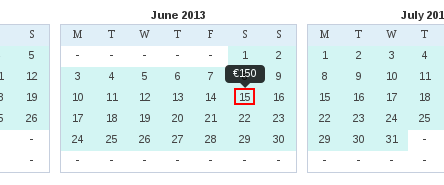
Can I set an Offer for my Listing?

You can add a special Offer for your listing, get extra promotion and of course more inquiries. This way, you can set an “Early Booking Offer”, a “Last minute Cancellation Offer”, or simple Offer a Discount for a specific period of your season. It is very common among travellers, the research for a Special Discount among the many available options. Every Offer, once it is “activated”, it is valid for 3 weeks (21 days). After that, the Offer expires and becomes inactive. This way, only real special deals are promoted.

Once you login to our Administration Panel, you will find the option “Offers” in our top menu. There, you can find all your bought offers (available for the future or already activated). See screenshot.

offers

The Offer with the red background (1st Offer), means that this Offer had been activated in the past and expired. The grey Offer (2nd one) means that this Offer is Activated and currently promoted. The 3nd Offer is an available Offer for future usage. You can “Edit”, set all details and then “Activate” it.

edit-offer

For every Offer, you must set the associated Rental which is valid for this Offer, fill the “Offer Title” (maximum 25 characters) and detailed description. You can edit and update your Offer as many times as you want. When your Offer is ready, you simply click on “Activate!” button and then your Offer becomes public to the travellers.

All Active Offers are automatically added to our special section for Offers, but also promoted in all other sections. If you have used all your available Offers, you can simply ask to buy extra 5 Offers, which they can be used and activated whenever you desire.

Take advantage of our brand-new rules and quickly set up your special offer to be automatically calculated at the potential customer rate.

By enabling a special offer and setting it up with the right rules, you increase your chances of getting a booking. Your offer will gain more exposure on the popular ‘Special Offers’ page, while customers see their final rate automatically calculated, including the discount price.

Here are practical examples to illustrate how rate rules can be set up:

  • Long Stay Discount: For eg. Offer a 10% discount for guests booking more than 8 nights. This incentive encourages longer stays, reduces turnover costs, and stabilizes booking flow.

  • Occupancy-Based Discount: For eg. If a villa has a capacity of 8 people but the guest inquiry is for only 2 people, automatically apply a 15% discount on the rate. This offers flexibility to smaller groups and avoids leaving the property underutilized without pricing incentive.

  • Custom Special Offer for a specific period:For eg., set a 10% discount for the dates from October 20th to October 27th if your property is available and not yet booked. Choose the Low Occupancy Offer. Apply the 10% discount for your preferred number of guests. Finally, you just have to select the exact week or date range when your property is available and create this rate rule from the blue button.

These dynamic pricing rules can be customized and applied for any specific period defined by the owner to reflect seasonal demand, special events, or promotional campaigns. Automation within a pricing system allows these rules to update rates in real time based on current inquiries and booking data.

Implementing such clear and adaptable rate rules helps balance guest satisfaction with revenue optimization, ensuring pricing is competitive and fair while maximizing rental returns.

If you need any further help, please, do not hesitate to Contact Us.

How can I add my Rental Registry Number (A.M.A)?


According to the greek law, every property should have a Rental Registry Number (A.M.A). If the property operates as business it will be the MHTE number.

Once, you take the number, you should present it on your online listings. In our platform, you can add this number, on your Control Panel, under the Main tab, as presented in the following image:

ama

Details about how you can take the Registry number can be found here:

https://www.aade.gr/polites/akineta/brachychronia-misthose-akineton


How can I accept reservations, after my approval?

You can now activate Reservations for every rental you want.

Once you login to our Control Panel, open the Rental you want to activate, select the Main tab and then under “Do you accept bookings?” question, select the option “Yes, after approval” and click “Update Rental” button.

approval

You can also set your downpayment percentage (the Initial Deposit can be 20-40% of the Total Price), by setting this number, based on your desire. The “Initial Deposit” goes to your paypal account (or bank) and the remaining balance, based on your payment policy (ex. cash on arrival, bank transfer 7 days prior of arrival etc)

Keep in mind, that it is important all specific rates are added for the property and availability is updated. If there are missing rate periods, your guests will not be able to Request to Book for these dates.

Do not hesitate to contact us, if you have any questions.

I want my Listing on Top of your lists

We are sure that all owners want their listing on top of our lists. And this makes sense, since statistics say that “The higher your listing, the more Inquiries” you receive!

Unfortunately, we cannot set all listings on top of our results, event though we have specific lists, based on your guests’ desire (ex. if they are looking for Villas in Sivota, Apartments in Nidri, a Sailing boat, an Exclusive Hi-end Villa, something very close to the sea etc)

Of course, you can select a higher promotional package (ex. Advanced or Premium), which leads your listing much higher at once. But promotional packages are only 3 and the current rentals are more than 700+. 

So, we follow some rules. And our rules are based on your guests’ needs. They want to see all possible details about your property, before they decide to book. And our system algorithm, which is updated 3 times per day, sets your listing based on the following factors:

  • Long descriptions of your properties and full details about your payment and cancellation policy, set your property higher.
  • Translated texts in more languages, help your property go higher.
  • Detailed prices per day and updated availability calendars, set your property higher.
  • Activated Special Offers for Limited period, set your property higher.
  • If you accept Online Reservations, you set your property higher.
  • If you have a high-rate of confirmed reservations.
  • If you have a high-score in your reviews.
  • Frequent updates or edits of your Listing, set your property higher.
The algorithm is automatically updated 3 times per day. So, the better and more updated details you provide to your guests, the more inquiries you receive, the more bookings you get!


How to create Rate Rules for Dynamic Pricing?

Introduction

Rate Rules are powerful pricing tools that automatically adjust your rental property rates based on specific conditions such as guest count or length of stay. This dynamic pricing functionality helps maximize revenue and increase bookings by implementing sophisticated pricing strategies that respond to different booking scenarios. Rate Rules allow you to offer incentives for longer stays or smaller groups, or to charge appropriately for larger parties that incur additional costs.

rate-rules
Rate rules for dynamic pricing

This customizable approach to pricing gives you greater control over your revenue management while providing flexibility to attract different types of guests.

Types of Rate Rules:

  1. Extra Guest Fee

The Extra Guest Fee rule adds an additional charge per night for each guest above a specified threshold. This is ideal for properties where hosting additional guests increases costs or causes additional wear and tear.

Example: You have a 8-person villa with a base price of €100/night, but extra guests require additional utilities and cleaning.

  • Rule Setup: €20 per extra guest per night above 8 people
  • Booking Scenario: A family of 10 books for 7 nights
  • Calculation:
    • Base price: €100 × 7 nights = €700
    • Extra guests: 2 people × €20 × 7 nights = €280
    • Final price: €700 + €280 = €980

When to Use:

  • When hosting additional guests increases your costs
  • When you can accept larger groups but want to offset additional wear and tear
  • When you provide extra amenities or services for larger parties


  1. Low Occupancy Discount

The Low Occupancy Discount rule offers a percentage discount on the total booking price when the number of guests is below a specified threshold. This helps attract smaller parties to properties that might otherwise seem too large or expensive.

Example: Your 4-bedroom villa can accommodate up to 8 people, but you want to attract couples or small families.

  • Rule Setup: 10% discount for bookings with fewer than 5 guests
  • Booking Scenario: A couple books for 5 nights at €150/night
  • Calculation:
    • Base price: €150 × 5 nights = €750
    • Discount: €750 × 10% = €75
    • Final price: €750 – €75 = €675

When to Use:

  • To increase occupancy during off-peak seasons
  • To attract couples or small families to larger properties
  • When smaller groups use less utilities and require less cleaning


  1. Long Stay Discount

The Long Stay Discount rule applies a percentage discount to bookings with a duration longer than a specified number of nights. This encourages extended stays and reduces turnover costs.

Example: You want to encourage longer bookings to reduce turnover and cleaning costs.

  • Rule Setup: 10% discount for stays longer than 13 nights
  • Booking Scenario: A family books your apartment for 14 nights at €120/night
  • Calculation:
    • Base price: €120 × 14 nights = €1,680
    • Discount: €1,680 × 10% = €168
    • Final price: €1,680 – €168 = €1,512

When to Use:

  • To encourage longer stays and reduce turnover
  • To maximize occupancy during shoulder seasons
  • To compete with monthly rental options in your area


Customizing Restrictions on Rate Rules

All rules can be further refined using additional parameters:

Date Range: Apply rules only during specific periods (e.g., high season, off-season, events)

Minimum Stay: Apply rules only to bookings above a minimum number of nights

Advanced Example: Create seasonal pricing strategies:

  • High Season (July-August): €25 fee per extra guest above 6 people
  • Low Season (May or October): 20% discount for groups smaller than 4 people
  • Year-round: 15% discount for smaller groups but for longer than 5 nights stay


Setting Up Rate Rules

To set up rate rules for your rental:

  1. Go to your rental’s dashboard
  2. Navigate to the “Rate Rules” section
  3. Click “Add New Rule”
  4. Choose the rule type
  5. Set the parameters (threshold, value)
  6. Optionally, specify date ranges and minimum stay requirements
  7. Save your rule

Rules are evaluated in order and can be combined to create sophisticated pricing strategies. When multiple rules of the same type apply, only the first matching rule of each type will be used. You can apply one rule of each type simultaneously (one Extra Guest Fee, one Low Occupancy Discount, and one Long Stay Discount).


Frequently Asked Questions

Q: Can I apply multiple rules to the same booking? A: Yes! Different types of rules can apply simultaneously. For example, a booking could receive both a low occupancy discount and a long stay discount if it meets both criteria. However, only one rule of each type will apply.

Q: Do rate rules affect my base rates? A: No. Rate rules apply adjustments on top of your existing daily rates. Your base calendar rates remain unchanged.

Q: Can guests see the rate rules applied to their booking? A: Guests will see the final price with all rate rules applied. They won’t see the individual rules or calculations, but they will benefit from any applicable discounts.

Q: How do I know if my rate rules are working? A: You can test your rules by creating a mock booking with different guest counts and dates. The system will show you the calculated price with all applicable rules.

Need Help? Contact our support team if you need assistance setting up rate rules or have questions about pricing strategies for your property.

What is a portal?

A Portal is a website that offers to list your vacation rentals for travelers to find. Some of the most known are: HomeAway, FlipKey (a TripAdvisor company), AirBnb, VRBO, HolidayLettings, OwnersDirect and many others.

Travelers prefer looking for properties and booking via a web portal, instead of individual sites of each owner. This way, they can refine their search, based on their specific needs, and compare between all available properties in the area they are interested in.

Lefkada-Rentals.com is a portal, with properties from Lefkada island only. So, guests know that they can find the best info for local properties, by a local company running here, in our beautiful island, Lefkada.

What is a portal's listing?

A portal’s listing refer to your vacation rental advert on a portal. This is a page dedicated to your property on the advertiser’s website.

In Lefkada-Rentals.com we create a specific page for your listing, using top-notch SEO technics, promoting your property.

Using our online control panel, you can edit/update your listing, whenever you desire, providing full details to your guests.

What is the "Sync Calendar" section?

“Sync Calendar” section, is a set of settings for your help. You can find it under the Availability Calendar, in “Calendar” tab.

There are 3 synchronization options, available on “Advanced” & “Premium” packages. 

  • You are able to embed the auto-updated calendar to your site (option 1). Simply add once the given link to your site and you are ready.
  • Also, you can export (Sync-Out) the auto-updated calendar, to other portals or calendars (like Airbnb, Outlook, iPhone etc) (option 2)
  • Finally, you can import (Sync-In) an iCal link, so your Lefkada-Rentals listing will remain automatically updated whenever you update your data from a source that supports iCal (.ics) exports (option 3)

You can automatically synchronize your availability calendar using, some of the following options:

What is a "Per Booking" listing?

If you -as an owner of a holiday rental- want to register your property in Lefkada-Rentals.com, you can either select one of our 3 main types of listing (Advanced, Premium), or ask for a “Per Booking” listing.

This is an extra option, where you can present the full details of your property (texts, photos, calendar, and detailed prices), but instead of receiving emails from your guests, you receive “Messages” and you should reply to them via our platform. Also, you receive “Online Reservations”, instead of simple inquiries and general questions. For this reason, it is mandatory for you as an owner, to have the detailed prices always updated and the latest by the 15th of December of each current year for the next summer season. The full details of your customer, are available to you, right after your confirmation of the booking.

For a “Per Booking” listing, you don’t need to pay any annual fee, but we keep a small booking-fee, which covers the expenses for your advertisement and the transactions fees (credit card, bank fees).

For more details, do not hesitate to contact us.

Can I integrate any Lefkada-Rentals widgets on my website?

Yes, Lefkada-Rentals currently provides 3 widgets for your website. They can be easily embedded with a single line, and enhance the user experience of your guests and make your website look more professional and always updated!

Here are the three options:

Embed your calendar to easily keep visitors informed about your availability.


Embedded availability calendar

Showcase your reviews to highlight the trust and satisfaction of your customers.

Guests' Reviews
Last Guests’ Reviews

Add a user-friendly contact form that makes it easy for your audience to get in touch with you directly in a more professional way.

Advanced Contact Form


For support or questions about these widgets, please contact us at [email protected]

Can I embed the calendar into my site?

Yes, we make it really easy to embed your availability calendar into your website, but also Facebook pages, blogs etc

Embedded availability calendar


Simply, copy the one-line code you find in the “Sync Calendar” settings and paste it wherever you wish, into your pages.

calendar-sites

If you have difficulties adding this piece of code to your website, please consult your web programmer/developer, or send us a message to assist you.

Can I add a Booking Request Widget for my website?

Yes you can add a Booking Request Widget to your website, and it’s fast and easy. Lefkada-Rentals.com provides you an embed code or widget script that you just copy and paste into your site’s HTML.

📱 Features

  • ✅ Professional booking experience – gives your guests a seamless reservation process
  • ✅ Responsive design – works on all devices
  • ✅ Static site compatible – works without server-side processing or email servers
  • ✅ Form validation – prevents invalid date selections & ensures all required fields are filled
  • ✅ Spam protection – blocks automated submissions by spam bots
  • ✅ Loading states – visual feedback during submission (soon with: availability & rates)
  • ✅ Error handling – graceful error management
  • ✅ Online payments (optional) – accept credit card payments without additional installations
  • ✅ Owner notifications – automatically sends reminders about upcoming guest arrivals
  • ✅ Review generation (optional) – automatically encourages guests to leave reviews after their stay
  • ✅✅ Completely free – no extra cost for all properties advertised on Lefkada-Rentals.com

📋 Integration Instructions

To use this widget on your website, simply add the following code:

<!– Include the widget script –> <script src=”https://www.lefkada-rentals.com/widget/lefkada-booking-widget.min.js”></script> <!– Place the widget container –> <div data-lefkada-widget data-rental-id=”123″ data-rental-title=”Your Property Name”></div>

🎛️ Configuration Options

  • data-rental-idRequired – The ID of your rental property
  • data-rental-titleOptional – Display name for the property

🚀 Live Demo

Embedded Contact Form

🎨 Customization

The widget can be customized with CSS by targeting the .lefkada-booking-widget class and its child elements.

/* Example: Change widget width and colors */ .lefkada-booking-widget { max-width: 500px; } .lefkada-widget-header { background: linear-gradient(135deg, #your-color1, #your-color2) !important; } .lefkada-submit-btn { background: #your-button-color !important; }

🔗 Support

For support or questions about this widget, please contact us at [email protected]

Can I add my Lefkada-Rentals reviews on my website?

Showcase authentic guest experiences directly on your website

Build trust and credibility with potential guests by displaying verified reviews that automatically update as new reviews come in – no maintenance required!

📱 Key Features & Benefits
  • ✅ Automatically updated – reviews sync in real-time with our database
  • ✅ Verified authentic reviews – only from real guests who have stayed at your property
  • ✅ Dynamic content – reviews refresh automatically without you doing anything
  • ✅ Mobile responsive – looks great on all devices, from phones to desktops
  • ✅ Lightweight – minimal impact on your website’s loading speed
  • ✅ SEO friendly – helps search engines recognize your property’s reputation
  • ✅ Zero maintenance – no need to manually update or moderate reviews
  • ✅ Professional design – matches any website with clean, modern styling
  • ✅ Customizable – control how many reviews to display
  • ✅ Works on ANY website – WordPress, Wix, HTML, even static sites!
  • ✅ Completely free – included with all listings on Lefkada-Rentals.com
💡 Why Add Reviews to Your Site?
  • 🏆 Build trust – 93% of consumers say online reviews impact their purchasing decisions
  • 🔄 Reduce bounce rate – keep visitors on your site longer
  • 💰 Increase conversions – visitors are more likely to book after reading positive reviews
  • 🔍 Improve SEO – fresh, dynamic content signals quality to search engines
  • 🤝 Social proof – leverage the experiences of past guests to convince new ones
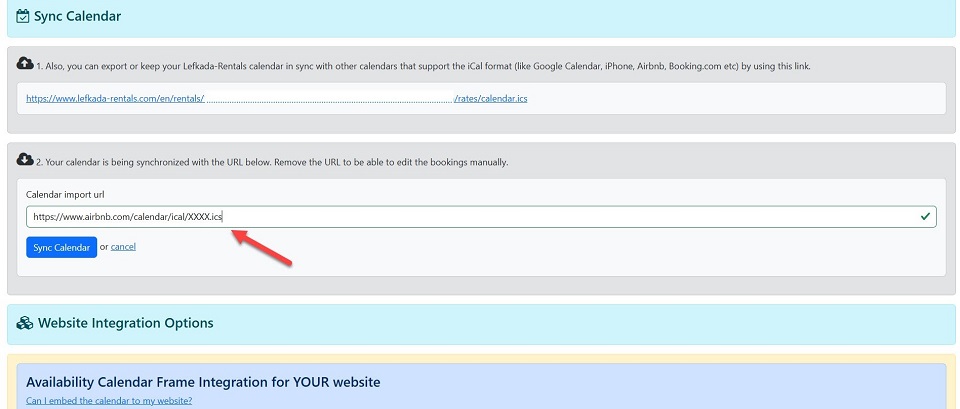

Did you know?

Properties with visible reviews get up to 35% more inquiries than properties without reviews. Adding this widget can directly impact your booking rate!

📋 Quick Integration

To use this widget on your website, simply add the following code:

<!– Place the widget container –> <div data-lr-reviews-widget data-rental-id=”123″ data-limit=”5″></div> <!– Include the widget script –> <script src=”https://www.lefkada-rentals.com/widget/reviews-widget.min.js”></script>

That’s it! No databases, no API keys, no complicated setup. Just copy-paste and you’re done!

🎛️ Configuration Options
  • data-rental-idRequired – The ID of your rental property
  • data-limitOptional – Number of reviews to display (default: 5, max: 10)
🚀 Live Demo

Here’s how the widget looks with real reviews:

Guests’ Last Reviews

Average: – ★

No reviews yet.

🛠️ Works on Any Platform

Our widget works seamlessly on any website platform, including:

  • WordPress
  • Wix
  • Squarespace
  • Shopify
  • HTML static sites
  • Custom-built websites

No plugins, extensions or technical knowledge required!

🎨 Customization

The widget can be customized with CSS by targeting the .lr-reviews-widget class and its child elements.

/* Example: Change widget width and colors */ .lr-reviews-widget { max-width: 500px; } .lr-header { background: #your-primary-color !important; } .lr-rating { color: #your-accent-color !important; }
📈 Benefits for Property Owners
  • Synchronization: Reviews submitted on Lefkada-Rentals.com automatically appear on your website
  • Credibility: Third-party verified reviews are more trusted than self-published testimonials
  • Time-saving: No need to copy-paste reviews or update your website
  • Fresh content: Your website stays current with new reviews automatically appearing
🔗 Support

For support or questions about this widget, please Contact Us

Can I synchronize with "iCalendar" (Airbnb or Booking calendars)?

Yes, our sync service supports automatic synchronization using iCalendar (.ics) formerly known as iCal calendars.

This means you can automatically synchronize and use the availability calendars of your properties across platforms such as Airbnb.com, Booking.com, Google Calendar, and many others.

You can find the corresponding calendar link for each property in the “Sync Calendar” section.

In addition, you can also import and synchronize updated calendars from other portals (e.g., Airbnb, Booking.com, etc.).

You can find all the information on how to export links in the official support pages of Airbnb.com or Booking.com

icalsync
ical-sync

Can I export my data to other services?

Yes, you can export your data of Calendar to the popular iCal format.

This way, you simply update your Availability Calendar into Lefkada-Rentals.com and we automatically update the external services and portals (like your iphone, android calendar, HomeAway, airbnb etc)

You simply use the autogenerated link in “Sync Calendar” settings tab

How do I reply to guest inquiries?

If you have choosen Advanced or Premium year basis package, you may receive requests from a traveler through Email Inquiry.

Please, note that all the notifications are sent via Lefkada-Rentals.com. So when you reply, please keep in mind that you should send your reply to the traveler’s email address and not to the Lefkada-Rentals. If you simply press the “Reply” button, then your answer goes directly to the guest, not to our platform.

Keep in mind, that we do not interfere in your communication between you and your guests.

Also, feel free to contact them directly by phone, when provided.

I have a booking. What do I do now?

Great news! Now you have to update your Availability Calendar.
 
The process is easy. You simply login to the Lefkada-Rentals Administration panel. Edit the rental you had the booking and select “Calendar” tab.
 
Then, press the button at the top left “Add Blocked Dates”.
 
i-have-a-booking
 
Then, search on the Start date and End date the period of your new reservation and make sure that the status under the dates is at the option Booked (as it is by default). Then press the button Block Dates.  
 
edit-availability

You will notice, that your calendar will change these dates to orange, so the customers will see that this period is booked. 

Just press Update Rental button at the bottom left and you are done

What is Online Reservation?

The guests, instead of simple inquiry, can send a Request to Book. This means that they feel more confident about the specific property and they want to pay securely online via Credit Card through our platform.

The owner can communicate with the guests via email or messages, before any payment and reservation and if he wants, he can change the Booking Price or the Initial Deposit. When the guest proceeds to the payment of the initial deposit, the owner can Accept or Decline the reservation (within 24 hours), before any confirmed booking occurs. Only after the owner’s approval, the Reservation is considered as confirmed.

The charge of the guests credit card is performed automatically by our system and the owner has nothing to worry about this process. This deposit is transferred to the owner by us and after the transfer, we issue the invoice of our commission. If more than 1 online reservation occurs withing 1 month, then 1 invoice is issued for all the reservations within this month.

The commission for this service (charging of the guests credit card and the transfer to the owners’ bank account), is 5% of the booking price and it covers all the transaction fees for the credit card and bank transfers.

Keep in mind, that many guests feel more confident and secure to pay online via their credit card and through a big platform, whereas this extra service you provide to your guests, pushes your listing higher in our lists.

The setting for activation of the Online Reservation is simple enough and can be managed by our Control Panel.

How do I reply in a "Message"?

If you have received by email a “Message” for an Online Reservation, it means that your guest is ready to book, but he may need an answer, a verification, or just he sends a notice for his booking.

In this case, you have to reply to him via our platform. You simply login to our Administration Panel and go to your “Reservations” page.

On the Reservations page, you see all your Online Reservations (requests, paid, accepted bookings, rejected etc). You can then click on the corresponding Messages button if you want to send a message to your guests.

There, you can see your previous conversation with your guest and reply to his message.

Keep in mind that all messages are automatically sent to your guests, and to you when they reply, and both of you are notified by email for every message received.

Don’t forget that you can always change the booking price or the amount of the downpayment, for this reservation request, and the payment link of your guest is automatically updated.

How do I accept a paid online reservation?

You have received an Online Reservation request, you exchanged your messages with your client and he finally paid the downpayment for his reservation.

This means that your guests paid via our secure platform, backed up with the highest standards, with their credit card. You have nothing to do, other than just to press the Accept button.

Once you press the Accept button, your money of downpayment is secured and will be transferred to your bank account after a while. Your client is also notified about your approval and that his reservation is confirmed.

A guest has paid the deposit by credit card through Lefkada-Rentals. When will I receive my payment?

When a guest pays the deposit via credit card through Lefkada-Rentals system, we receive the funds in our account. Your payment is then released after the guest’s departure.

A 3% fee applies to the total reservation price to cover bank charges for credit card payments and transfers.

I have selected package Per Booking partnership. How do I answer the customers' inquiries?

We adding here solutions on regarding some common issues.

You may find here your solution. So we request to check here for your issue before asking us.


per-booking

1) Express gratitude for his inquiry and confirm your availability and the pre-agreement of payment for the rest of the balance.

2) Conclude your message by inviting the customer to proceed with his deposit by clicking on the Lefkada-Rentals.com code provided, similar to 0123-AUG-4321, and completing the transaction using his credit or debit card to secure his booking. 

3) Once he completes his deposit, you will promptly receive an email notification. Kindly login to your account at https://www.lefkada-rentals.com/users/login within the next 24 hours. Navigate to the Reservations section to review and either approve or decline his request. Upon selecting ‘Approve‘ via the green button, the deposit will be processed, confirming the reservation for the customer.


Hosts can share external links and resources with guests after a booking is confirmed.

If, for any reason, you decline his deposit, it’s important to communicate the occasion. Subsequently, the customer will receive a full refund of his deposit amount. It’s crucial to ensure transparency and promptness in the refund process to maintain customer satisfaction and trust. 


* Please remember that in per booking inquiries, do not disclose any personal or business details to the customer until their deposit is completed.